
You can use Theater in Nextpoint Litigation to create, present, and annotate document callouts and highlights. Using Nextpoint Theater, you can pull out specific sections of documents and highlight or underline key text. You can select multiple sections of a document, and the tool will automatically resize the text boxes. These documents can be displayed live through Theater or downloaded for use in offline presentation tools.
How to Access Theater
1. Open Theater from the main documents page
Go to MORE > Theater to launch a blank Theater window.
2. Open Theater when viewing search results
In grid view, click the and select the Theater icon
 to view the document in Theater.
You can also include the Theater icon in your Grid View Template for one-click access.
When in Chron View, click the Theater icon  next to a document to view it in Theater.
3. Open Theater when viewing a document
Go to Document options > View in Theater to launch the Theater window.
Creating Treatments in Theater
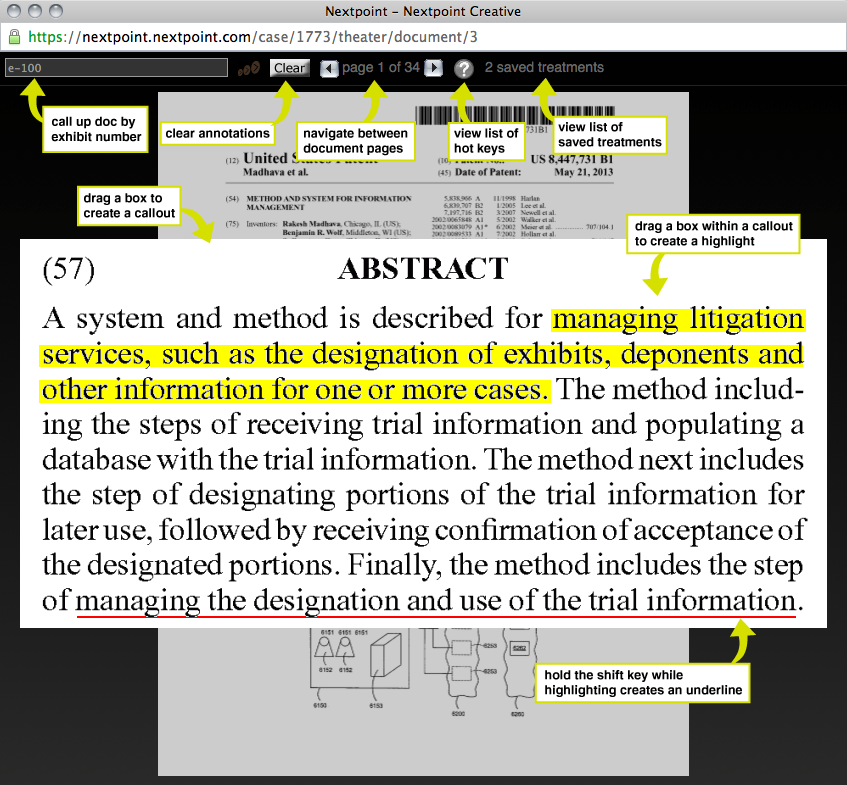
Creating a treatment begins in Theater by clicking, dragging, and releasing your cursor to call out a section of the document. From there, you can:
- Drag to create highlight treatments
- Shift + drag to create a red underline
Treatments can be saved, downloaded, recalled, and exported in bulk for presentation or review.
Pro Tip: Use the visual hints below and the available keyboard shortcuts. These shortcuts are also accessible via the question mark (?) menu in Theater.
Document Hotkeys & Shortcuts
| Shift | Create an underline |
| W | Create a whiteout box |
| n, > | Go to next page |
| p, < | Go to previous page |
| f | Find by designation (e.g. CEX-10) |
| j | Jump to specific page |
| s | Save the current document treatment |
| 1-0 | Load a saved document treatment |
| z, u | Undo a callout/highlight |
| Z, y | Redo a callout/highlight |
| c | Clear all callouts |
| r | Reveal all callouts |
| d | Normal Resolution |
| D | Higher Resolution |
| Esc | Close the document/Clear a Screen |
| ? | Show/hide help |
| Shift + left or right arrow | Rotate image |
Saving Treatments in Theater
To save your treatment, type "s" after creating the treatment to open the dialogue box shown below. You can save your treatment to an Issue, Folder (great for witness prep), or None.
Click Save, and your treatment will be available for recall.
Recalling Saved Treatments
While in Theater
To view the saved treatments in Theater, click "saved treatments" to see thumbnails of your treatments.
Clicking on a thumbnail will open the saved treatment. You can also type the number of the saved treatment to recall it in Theater.
While viewing an individual document
- While viewing a document, click Document options > Saved treatments to see thumbnails of saved treatments.
- Click a treatment thumbnail to launch it in Theater.
- Click the
to delete a treatment.
- If a newly saved treatment doesn't appear, click the
to refresh the list.
Export Saved Treatments
When viewing search results
From any grid view list of results, click OPEN FILTERS and drop down the Work Product section. Once open, scroll to the Treatment Label section and select all treatments, or only a certain folder or issue for which you would like to export treatments (e.g., John Smith Depo Prep).
Presenting Documents in Court with Theater
Theater can be used as a live presentation tool for trial or hearing settings.
For best results, use a dual-monitor setup with your screen extended:
- Use your Primary Monitor to search for documents and prepare treatments (visible only to you).
- Use your Secondary Monitor to display documents in Theater, which can be mirrored to the courtroom display.
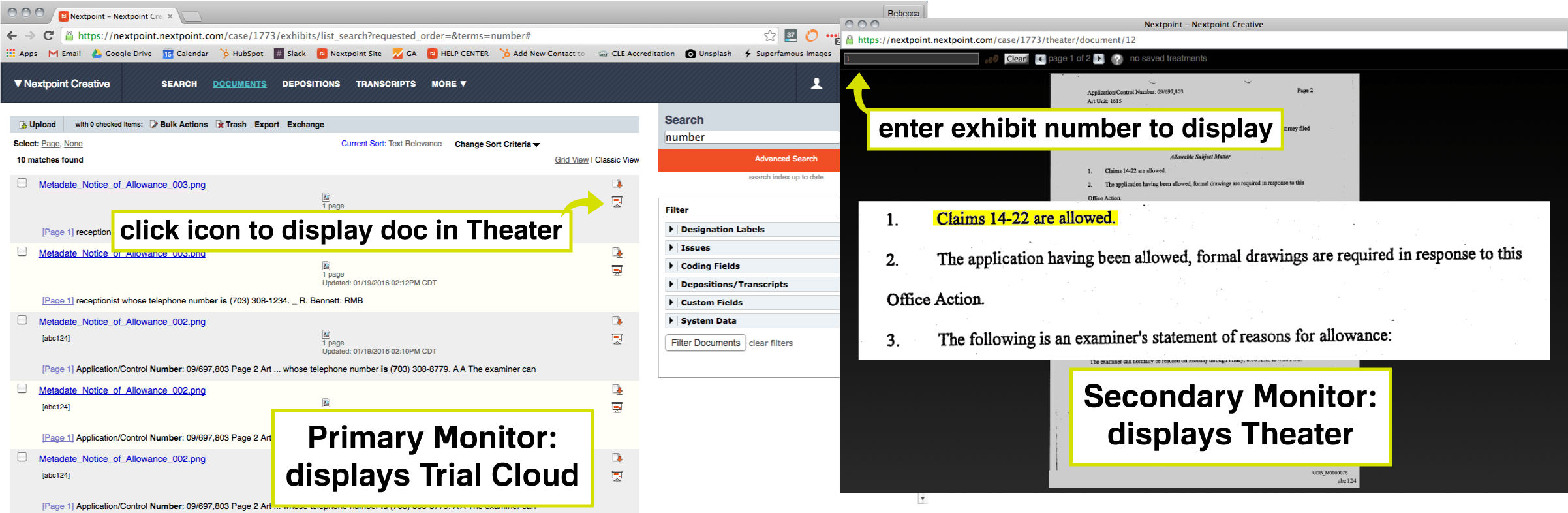
You can open documents in Theater using the Theater icon  from search results or by entering an exhibit or designation number directly in Theater.
Return to Litigation Workflow
Comments
Article is closed for comments.