Review Your Data
Folder Organization
- Subfoldering Setup Guide
- How to Create Folders in Discovery
- Folder Management + Navigation
- Working with Folder Categories
- Managing your 'Favorites' Folder Category
- Advanced Folder Insights for Discovery & Litigation
Document Fields & Coding
- Near Dupe Detection
- Confidentiality Coding & Stamping in NextGen
- Metadata Availability by Document Type
- Setting Up Custom Grid Views in Discovery
- Adding Key Terms to Documents
- Creating & Editing Responsive Issues in Discovery
Search and Analyze
- Nextpoint Search Guide
- NextGen vs. Legacy: What's Different?
- How to Create a Search Hit Report
- Locked Metadata Fields
- Search Hit Highlights
- How to Report the Page Count of a Folder
Review Your Data / Document Manipulation
- Auto-Redactions
- How to Apply Redactions
- Sharing a Document with Other Users Via Email
- How to Remove a Redaction or Highlight
- Add Page(s)
- Native Spreadsheet Viewer
Folder Organization
When you import documents into Nextpoint, the platform stores them in folders — but by default there's no native way to browse your original subfolder structure the way you would in Windows Explorer or Finder. The Subfoldering file path browser is a standalone HTML add-on that reconstructs that folder tree, letting you navigate directly from any folder or file into your Nextpoint database.
This guide walks through the full setup process, from exporting the required load file to sharing the configured browser with your entire case team.
Before You Begin
Before setting up the file path browser, ensure that:
- Your documents have already been imported into your Nextpoint database.
- Your documents were imported by selecting the highest folder level possible, allowing Nextpoint to capture the Root Folder and File Path metadata.
- You have downloaded the Subfoldering file path browser HTML file (
filepathbrowser.html). - You have permission to access the Settings tab in your database.
Important
Always import documents at the highest folder level possible. If you click into subfolders and select individual files during import, the full File Path field will not be populated — preventing the file path browser from reconstructing your original folder structure.
Table of Contents
- Step 1: Create the Export Template
- Step 2: Export the Load File CSV
- Step 3: Load the CSV into the File Path Browser
- Step 4: Configure Database Settings
- Step 5: Save and Share the Browser
- Keeping the Browser Up to Date
- Frequently Asked Questions
- Quick Reference Checklist
Step 1: Create the Export Template
The export template only needs to be created once per database. It defines which metadata fields will be included in the CSV used by the File Path Browser.
- Navigate to Settings.
- Select Export & Exchange.
- Click Create New.
- Name the export template (for example, File Path Browser).
- On the Files screen, do not select any files. This export will only generate a load file. Click Next.
- Skip the naming screen since no files are being exported. Click Next.
- On the Load File screen, enable Include Load File and select CSV as the format.
- Click Create New to create a new load file template.
- Name the template File Path Browser.
Configure the Load File Template
Add the following fields to the load file template:
Note
The order in which fields are added does not affect the file path browser's ability to read the data, so there is no need to rearrange them into the sequence shown above. If you'd like the field list to match that order for readability, using your mouse wheel while dragging fields makes it easier to reorder them in the template editor.
- Save the load file template.
- Save the export template.
Step 2: Export the Load File CSV
The exported CSV serves as the data source for the file path browser. It represents a snapshot of your database at the time of export.
Note
If additional documents are imported later, you will need to generate a new CSV and update the browser. Instructions for updating the browser are provided later in this article.
- Go to the Review tab and search for an asterisk (
*) to return all documents. - Alternatively, from the Analytics tab, click the Total Documents count.
- Select all documents.
- Click Export and choose Load File.
- Enter a descriptive export name, such as:
FPB_06-11-26_[DatabaseID] - Click Export.
- Monitor the export under Data > Exports.
- When the export completes, click the folder icon to download the ZIP file.
- Extract the ZIP file.
- Locate the CSV file inside the extracted folder. This file contains the metadata required by the file path browser.
Good to Know
Since only a CSV is being exported, the process typically completes much faster than a standard production export. However, if other export jobs are already running, your job may wait in the queue until system resources become available.
Step 3: Load the CSV into the file path browser
- Open the file path browser HTML file in your web browser (double-click to open it locally).
- Click Load Data.
- Navigate to your Downloads folder, select the CSV file from your export, and click Open.
You will see the folder tree populate, including:
- Documents with no root folder (imported loosely)
- Folder structures from your imported load files
- Mailbox folders — PST and MBOX files show their internal folder hierarchy using the Mailbox Path field
Not Linked to Nextpoint Yet
At this stage, clicking files will not navigate to Nextpoint. You still need to configure the database URL in Step 4.
Step 4: Configure Database Settings
- In the file path browser, click the Settings icon (gear icon).
- Paste in the URL of your Nextpoint database. You can copy it from anywhere in the database — the browser parses the relevant portion automatically.
- Confirm the database type indicator at the bottom of the settings panel. It displays D for Discovery or L for Litigation next to your database name.
- (Optional) Set a default Grid View template. To find the template number, go to Settings > General in Nextpoint, click Edit on your default template, and note the number in the URL.
- (Optional) Configure a sort order for documents opened from the browser.
- Click Apply.
Tip
If you have custom Grid View templates that include File Path or Mailbox Path columns, consider pointing the browser to one of those for the most useful review experience.
Once configured, clicking the arrow icon next to any file opens that document directly in your Nextpoint database. Clicking the arrow next to a folder name opens a Grid View showing all documents in that folder.
Step 5: Save and Share the Configured Browser
After configuration, save a fully intact copy and share it with your case team so they do not need to repeat setup.
- In the file path browser, click Download. The file saves as an HTML file named after your original CSV export.
- In your Nextpoint database, go to the Share tab.
- Click Share a File.
- Give the file a descriptive name (for example, File Path Browser) and add version notes such as the date or V1.
- Click To My Device, navigate to your Downloads folder, and select the HTML file you just saved.
- Click Share a File to upload.
Anyone with access to the Share tab can now open the file path browser without any additional setup — they click the file name and the fully configured browser opens in their browser window.
Keeping the Browser Up to Date
The file path browser is a point-in-time snapshot. If you import additional documents after the initial setup, update the browser to include them.
- Re-run the export using the same file path browser template (Step 2).
- Open the existing file path browser HTML file and click Load Data.
- Load the new CSV file.
- Click Download to save the updated HTML file.
- In Nextpoint, go to the Share tab, click on the file path browser entry, and select Share New Version.
- Add a date or version note, upload the new HTML file, and click Share New Version.
The Share tab will serve the updated version to anyone who opens it.
Frequently Asked Questions
Documents imported loosely — not at the folder level — will not have a root folder or file path value. To avoid this going forward, always import by selecting the folder itself rather than drilling down and selecting individual files.
This is mostly an issue in Legacy databases. Certain documents that originate from containers such as zip files will not preserve the file path hierarchy.
When deduplication is enabled during import, copies of the same file across multiple folders are imported only once. The root folder and mailbox path fields for the deduplicated file contain the original root folder and mailbox path for each of the duplicate copies. In the file path browser, the file is represented at each of its original locations to reflect how the copies were kept at the source, but each entry points to the same file in the Nextpoint database.
Mailbox data from PST files uses the Mailbox Path field rather than the File Path field. Confirm that both Mailbox File and Mailbox Path were included in your load file template. If those fields are present in the CSV, the browser will display mailbox folder trees automatically below the section listing files by file path.
Go to the Settings icon in the file path browser and verify the URL you pasted. Make sure it is from the correct database. The browser reads only the base URL and database identifier — the specific page you copied it from does not matter.
No — you only need to redo Steps 2 through 5. Your export template and load file template are already saved in the database. Run a new export, load the new CSV, download the updated browser, and upload a new version to the Share tab.
Yes. The export template and load file template need to be created once per database (Step 1). Steps 2 through 5 are repeated for each database whenever you want to set up or refresh the browser.
Quick Reference Checklist
- Import documents at the folder level (not file-by-file)
- Create export template with file path browser load file template (once per database)
- Add required fields: Nextpoint ID, File Path, Root Folder, File Name, Mailbox File, Mailbox Path, Import Batch
- Export all documents as CSV load file
- Download and unzip the export
- Open file path browser HTML and load the CSV
- Configure database URL via the Settings icon and click Apply
- Download the configured HTML file
- Upload to the Share tab in Nextpoint for team access
Subfoldering Setup Guide
*The below functionality is available for Advanced users only.
Introduction to Folders
Folders in Nextpoint are a mechanism used to organize groups of like documents. (e.g. “Custodian A Mailbox” or "ABC Production001") and can be applied to documents individually at the document-level or en masse with a Bulk Action.
It is important to note, folders are structured as a 'tag' that points to documents within a particular grouping. Thus, one unique document might be found in multiple folders because the different folder 'tags' are pointing to that document.
For example, I might add Email #1 to a folder titled "Email Review." After reviewing, I distinguish this email should be produced and ultimately it is added to my "ABC Prod001" folder. Moving forward, I will be able to locate email #1 in both the Email Review and ABC Prod001 folders (and it is only one copy of the email).
How to Create a New Folder
Whether you are first setting up and organizing your database, importing data, or running a search, creating a folder is accessible to you. Outlined below are the different ways to create a folder in Nextpoint.
Create a Folder from Settings
1 | Locate Folder Settings
From the top navigation in your Discovery database, navigate to Settings > Folders and click Create New in the Folders section.
2 | Create your Folder
- Enter your Folder Name and validate the auto-populated abbreviation/prefix is what you prefer.
- Assign a color to distinguish your folder visually in the database. Perhaps, all custodian folders are blue, all production folders are green, etc..
- Select which Folder Category (or categories) your folder should be associated with.
- Click Create to finalize the creation of your folder.
The next step will be to add documents to your folder. Read on how to use Bulk Actions to organize your documents here >>
Additional Folder Actions from database Settings
Edit your Folder
If you would like to edit a folder, click Edit and make your desired changes. Click Update to save your changes.
Manage Folder Assignments
Users with Reviewer user permissions can only access documents in folders that they have been assigned to. You can assign reviewers under the Review tab using the Assign button.
To assign or un-assign users to a particular folder, click the box next to the Folder(s) for which you would like to manage assignments click Bulk Edit select the desired action (Assign, Un-assign).
The same steps apply if you would like to inactivate or delete a folder.
If managing assignments, select the box next to the users you would like to assign to the selected folders click Assign.
Create and Apply a Folder on Import
1 | Initiate the Import Workflow
From the top navigation in your Discovery database, navigate to DATA > Imports
If you are in a Legacy Database, select Import Files:
If you are in a NextGen Database, select New Import:
2 | Select Files for Import and Set-up Import Details
- Select the import tyle you will be using: Single Mailbox (recommended for PST imports), Multiple Files, Production with Load File, and Manual.
- Select your files for import by clicking the envelope icon by Files and you will see Import files or folders from the File Room. Select desired file and click Add selected to import list. See more on the different import options here >>
- Enter a Batch Name
- Create and/or assign a Custodian if applicable.
- Click Create New Folder or search for an existing folder to which your data should be added to upon completion of your import batch. See further details below as to the settings prompted in the pop-up modal once you click Add New Folder.
- Click Import Files to initiate processing. Documents processed in your new batch will be added to the designated folder.
NOTE: If importing native data emails, loose files, etc..., the folder will populate in Date & Family order, meaning email families will be grouped together in chronological order. If importing produced data with Bates information, the folder will populate in Bates order.
3 | Add New Folder Modal
Once you click Add New Folder in the Import Set-up workflow, you will be prompted to add a few quick details.
- Enter your Folder Name and validate the auto-populated abbreviation/prefix is what you prefer.
- Assign a color to distinguish your folder visually in the database. Perhaps, all custodian folders are blue, all production folders are green, etc..
- Select which Folder Category (or categories) your folder should be associated with.
- Click Create to finalize the creation of your folder.
Note: If you simply want to name your folder in the immediate, you can always come back and edit the details later via settings or via the REVIEW tab (the three-dot drop-down next to each folder allow you to make edits).
Create a Folder from your Folder List
1 | Locate Folder List via REVIEW tab
From the top navigation in your Discovery database, navigate to REVIEW and click Create Folder in the top right of your folder list.
2 | Create your Folder
- Enter your Folder Name and validate the auto-populated abbreviation/prefix is what you prefer.
- Assign a color to distinguish your folder visually in the database. Perhaps, all custodian folders are blue, all production folders are green, etc..
- Select which Folder Category (or categories) your folder should be associated with.
- Click Create to finalize the creation of your folder.
The next step will be to add documents to your folder. Read on how to use Bulk Actions to organize your documents here >>
Create a Folder from Bulk Actions
1 | Access the Grid View
From the top navigation in your Discovery database, navigate to REVIEW and run your applicable search (or Filter).
Once you are on the Grid View, select the resulting list of documents then click Bulk Actions.
2 | Create your Folder
The Bulk Action modal will pop-up. Select Add under the Folder action checkbox then click Create New Folder.
- Enter your Folder Name and validate the auto-populated abbreviation/prefix is what you prefer.
- Click Create to finalize the creation of your folder.
3 | Finalize Bulk Action Settings and Update
- Once your folder has been created, verify the folder selection.
- Make your selection as to which related documents should be added to the folder (none, email family, email chain, duplicates).
- Make your selection as to the order in which documents should be added to the folder (current sort in the grid view, family order, date and family order).
- Lastly, click Update to initiate the Bulk Action to add the documents in your Grid View list to the newly created folder.
Create a Folder in a New Database (Empty State)
If no folders are set-up in your database, you will have the option to create a folder by selecting the REVIEW tab and clicking Create Folder
Following this step, you will be taken to a screen to enter the details of your new folder.
- Enter your Folder Name and validate the auto-populated abbreviation/prefix is what you prefer.
- Assign a color to distinguish your folder visually in the database. Perhaps, all custodian folders are blue, all production folders are green, etc..
- Select which Folder Category (or categories) your folder should be associated with.
-
- If Categories have not yet been created in your database, they will not be available for selection. You can further categorize after folder creation.
-
- Click Create to finalize the creation of your folder.
The next step will be to add documents to your folder. Read on how to use Bulk Actions to organize your documents here >>
There is no limit to the number of Folders you can create. Check out our blog post about this.
Return to Discovery Workflow
How to Create Folders in Discovery
- Folder management - You can create, edit, and inactivate folders right from your folder list in Discovery and Litigation. Additionally, your folder icons will now display in the color you set.
- Easy folder sorting - All columns in your folder lists are sortable and can be reset to your custom sort order with one click.
- Say goodbye to “Show More Folders” - Available folders are displayed in a continuous scrolling list. Better yet, we'll save your spot in the list when you navigate away in the database.
- Folder searching - When looking for a folder in your list, you can search any part of the folder name instead of the exact name.
- Assurance you’ve “seen it all”- An “unfoldered documents” link is available at the bottom of your folder list.
* Updates to creating and editing folders/issues available to Advanced User Permissions. User interface and navigation updates will be reflected in all user permissions. Read more below.
Simplified Folder Management
Folder management at your fingertips with the addition of the Create Folder + Create Document Issues (In Litigation) buttons on the folder list pages — creating efficiencies one less click at at time.
You can now find “Create Folder” + “Create Document Issue” buttons on the REVIEW and DOCUMENTS tabs in Discovery and Litigation, respectively.
Simply click on the green Create Folder button in the REVIEW tab of your Discovery database (DOCUMENTS tab in Litigation). You will be prompted to enter the folder name, abbreviation, and select a folder color (tip: your exhibit stamps will be the same color as your folder). After completing the folder creation form, click Create.
CREATE FOLDER IN DISCOVERY
CREATE FOLDER IN LITIGATION
Navigate to your Litigation database and go to DOCUMENTS at the top of your screen. Click the green Create Folder button. You will be prompted to enter the folder name, abbreviation, and select an editor color. After completing the folder creation form, click Create.
CREATE DOCUMENT ISSUE IN LITIGATION
Navigate to Litigation database > DOCUMENTS > Document Issues tab and click the green Create Document Issue button.
You will be prompted to enter the Issue name, abbreviation, issue desciption (optional) and select a report color (for highlights associated with the issue). After completing the issue creation form, click Create.
In addition to adding accessibility to creating folders, we also added the opportunity to edit/inactivate folders from the REVIEW tab and edit/inactivate folders or document issues from the DOCUMENTS tabs. This will only give further flexibility in managing your case organization.
To edit or inactivate a folder in discovery, navigate to the REVIEW tab and click the three-dot drop-down next to the folder name and make the appropriate selection.
EDIT OR INACTIVATE FOLDER IN DISCOVERY
EDIT OR INACTIVATE DOCUMENT ISSUE IN LITIGATION
To edit or inactivate a folder or document issue in litigation, navigate to the DOCUMENTS tab, click the three-dot drop-down next to the folder/document issue name, and make the appropriate selection.
In the folder list of Discovery and Litigation databases, you will now find an "unfoldered documents" link which returns search results for documents which have not been added to folders. The aim of this addition is to help ease anxiety you may have in making sure you have "seen it all."
Locate the unfoldered documents link under the REVIEW tab in a Discovery database or under the DOCUMENTS tab of a Litigation database.
UNFOLDERED DOCUMENTS LINK IN DISCOVERY
UNFOLDERED DOCUMENTS LINK IN LITIGATION
Added form validations for Create/Edit forms that check a name, prefix, color are present, name is not more that 100 characters, and not a protected name.
Folder Navigation Updates
Improved navigation (e.g new scrolling folder list vs. old “Show More Folders”) let’s you better organize without worrying how you will find your folders later.
Columns headers in the REVIEW and DOCUMENTS tabs (Discovery and Litigation, respectively) are sortable!
Click any column header in the folder lists of Discovery or Litigation to sort in ascending or descending order. Reset to user-defined order by clicking Custom Sort at the top of list.
What is Custom Sort?
Custom Sort is a specified sort order which any Advanced User within a given database can define and update in Settings. For example, you may want all of your Production folders grouped together in your folder list, followed by Custodian folders, then key term search hit folders, etc.
We removed the option to "Show More Folders” and now all folders will be displayed in one continually scrolling list (Discovery + Litigation).
Additionally, when you navigate away from the list and use your browser back arrow, we will highlight your previous location in the list for ease of reference.
Why are my columns not sorting?
If you find that the columns in your folder list do not appropriately sort when clicked, we might suggest restarting your browser. If that doesn't do the trick, please try clearing your browser cookies and then attempt to sort.
When searching for a particular folder from your list of folders, the search bar will now search across the entire folder name instead of requiring the first word and exact name (Discovery + Litigation).
For example, if you are looking for all Review Sets, you can search for "set", and Nextpoint will return all folders which have "set" anywhere in the folder name.
Note: In Litigation DOCUMENTS Batches, we have removed the option to search the list of batches, but the list remains scrollable. You may also reference MORE Data Imports to review all import batches within your database.
Previously, only the document counts for each folder or document issue (Litigation) was hyperlinked. We have now added a link to each folder or document issue which will lead you to the full document count for each.
If you leave the REVIEW or DOCUMENTS tabs (Discovery and Litigation, respectively) and return using the back arrow in your browser, your location in the list will be remembered and highlighted.
User Interface Improvements
Empty state has been updated for REVIEW folder list page, as well as Folders, Document Issues, and Batches tabs in Litigation/DOCUMENTS.
Folder Icons will now include the folder color you set when creating or editing the folder.
No functionality changes have taken place with these UI updates; however, the Manage Trash button in Review was previously located at the bottom left of your folder list in the REVIEW tab, and it is now located at the top right.
When Filters are open, the Manage Trash button will shrink to only display the trash can icon.
Folder Management + Navigation
Folder Categories provide users the opportunity to organize folders of similar type and create one layer of 'subfolders'. Unlike the traditional subfolders you may find on your computer desktop, categories can be applied to more than one folder. This flexibility in navigation gives Admins and reviewers alike easier and more efficient access to relevant folders when they are needed.
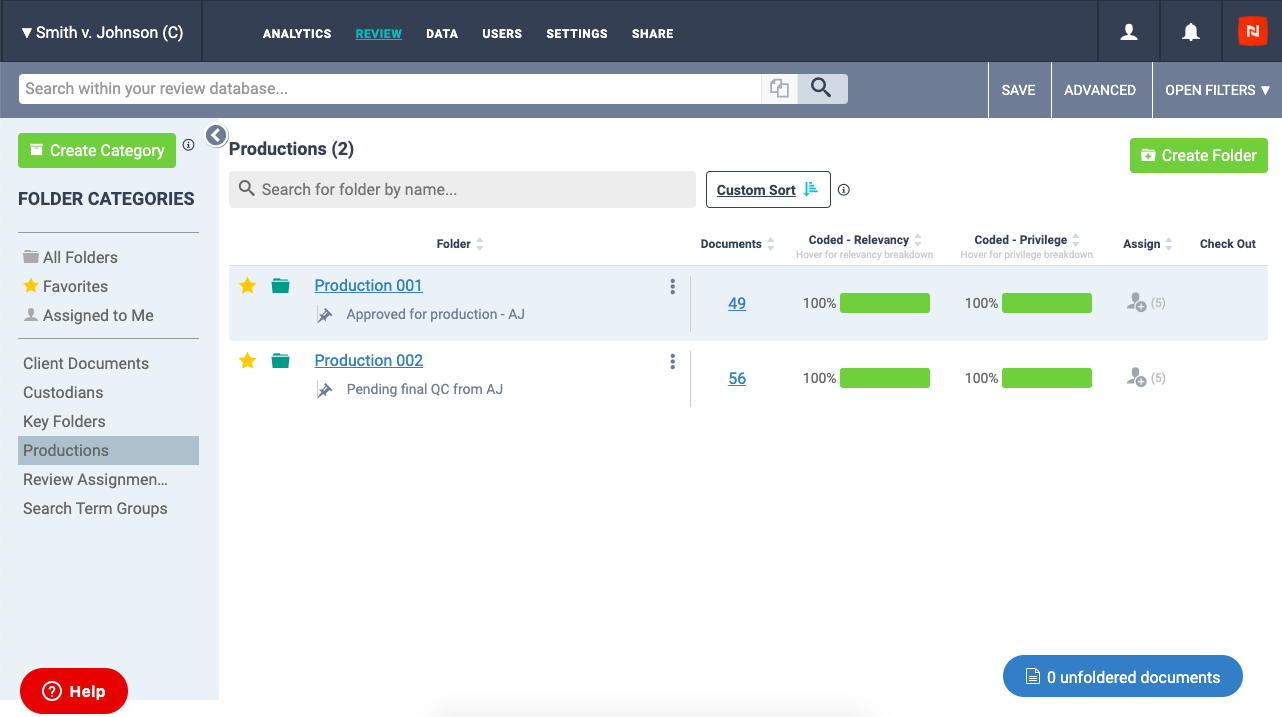
To get started adding Categories to your case organization, simply click the green Create Category button from the folder list in any Discovery or Litigation database. Follow the prompts in the pop-up modal to set the Category Name, and select to which folders the Category should be applied. Click Create to finalize the setup, and your Category and associated folders will be immediately available in the Category sidebar on the left.
See more below on working with categories >>
Any default and/or user created categories can be found in any Nextpoint database in the sliding Category sidebar on the left and can be managed by an Advanced user from the folder list or folder settings page in both Discovery and Litigation.
Category Use Case Examples
- One example as to how you can leverage Categories is with Client Documents. You may create a category titled Client Documents, and within that category organize the folders Client Email Collection, Staffing Documentation, Contracts, etc...
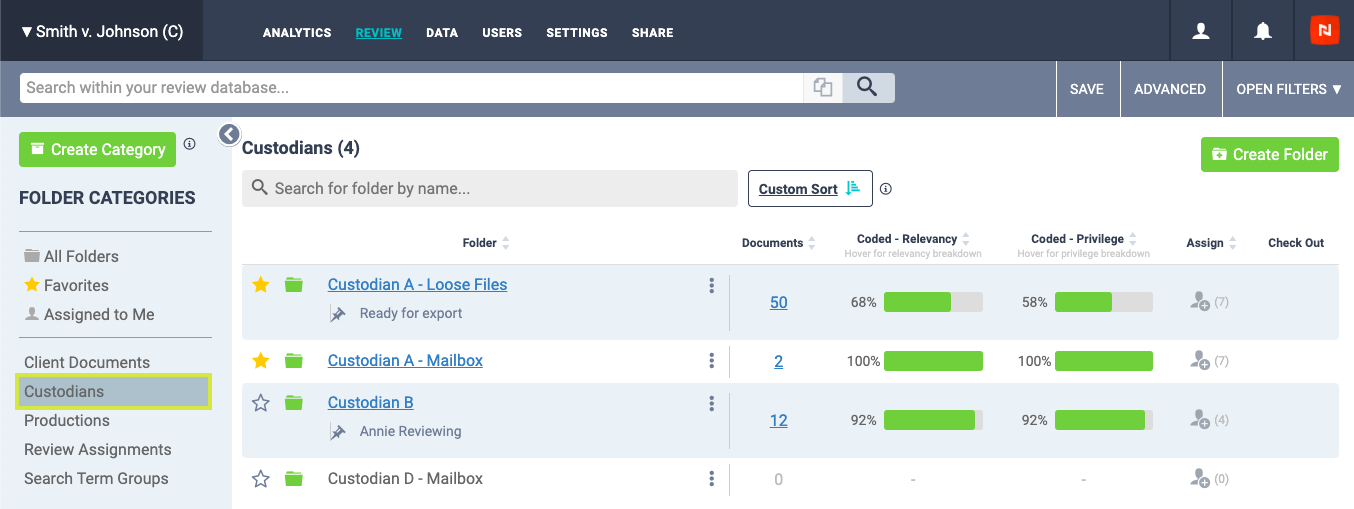
- Another example is to create a category titled Productions, and within that category organize the folders Prod 001, Prod 002, etc.. (as shown below).
How to Work with Categories
Outlined below are instructions for creating, managing, editing, and deleting Categories. But first, a couple of notes on accessibility of the Category function:
- Every Discovery and Litigation database is equipped with two default Categories: All Folders and Favorites. In Discovery only, there is an additional default category of Assigned to me which houses all folders which have been assigned to your username.
- Any Category navigation can be seen by all users with varying default categories depending on user level.
- The ability to create, edit, and manage Categories is limited to Advanced users in both Discovery and Litigation.
Create a Category
Advanced users can create a new/custom category from the folder list in both Discovery and Litigation databases.
In Discovery, navigate to the REVIEW tab, open the Category sidebar with the arrow button at the top left, and then click the green Create Category button.
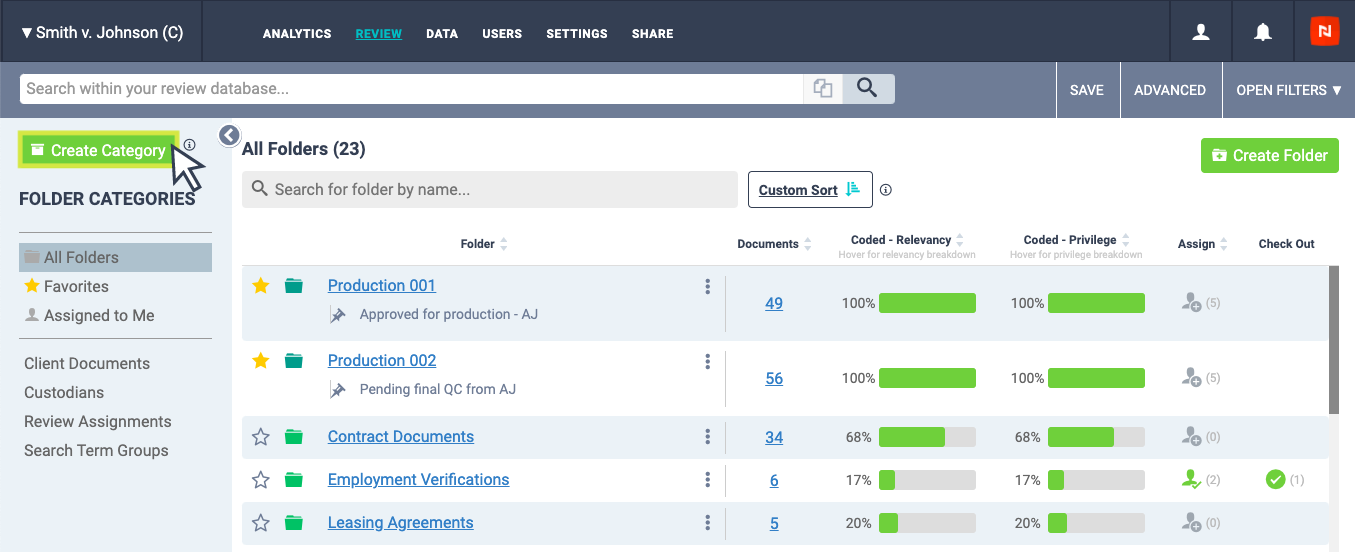
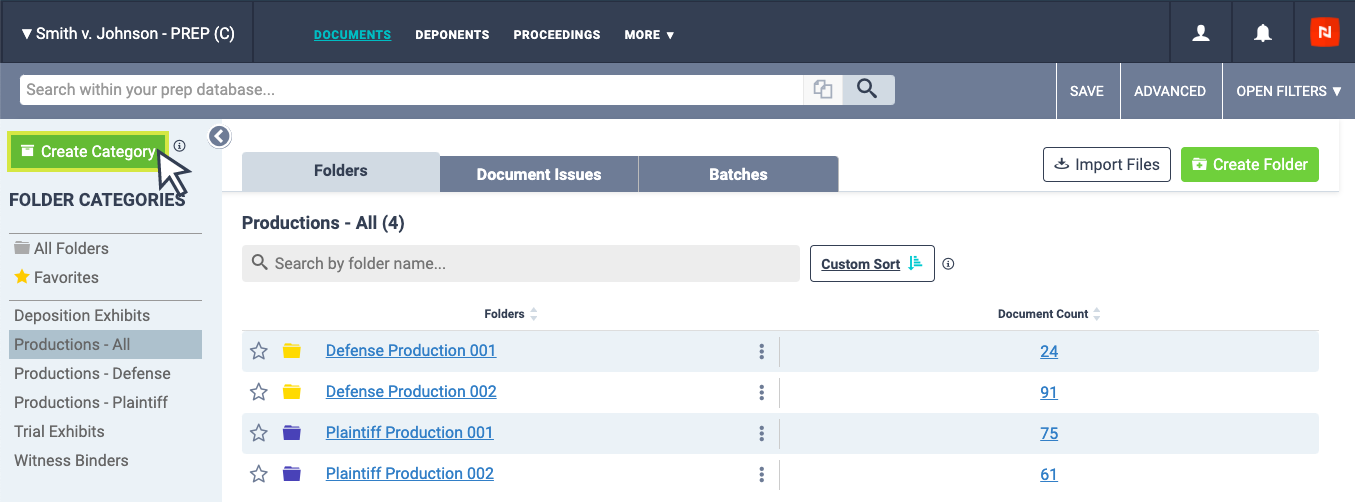
In Litigation, navigate to the DOCUMENTS tab, open the Category sidebar with the arrow button at the top left, and then click the green Create Category button.
Note: You must have the Folders tab displayed in order to open the Category sidebar in Litigation.
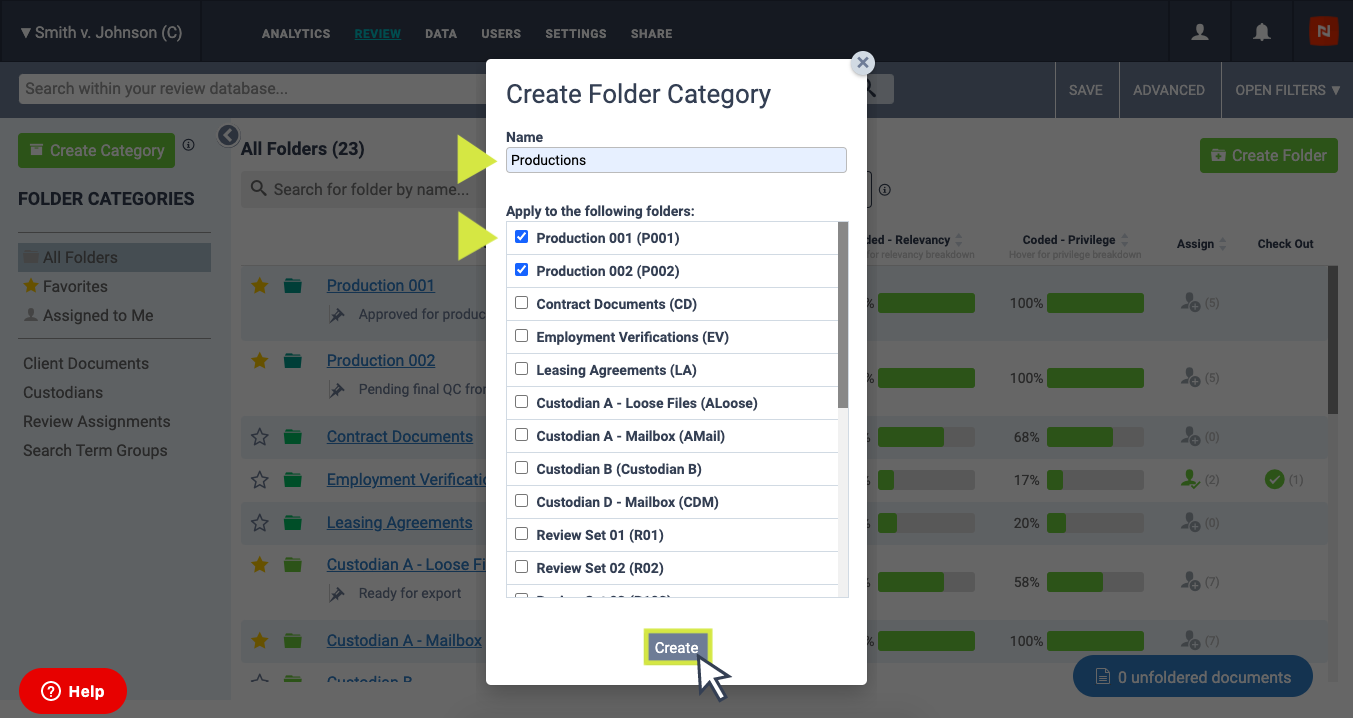
Once you click the green Create Category button, a pop-up modal will appear and prompt you to enter the Category Name, and select to which folders the Category should be applied (folders must be existing).
Note: Folders + Categories cannot have the same name. If you attempt to enter such during creation (or editing), you will be provided a warning.
After you've made your selections, click Create.
Once created, you will now see your newly created Category highlighted in the sidebar, and the associated folders displayed.
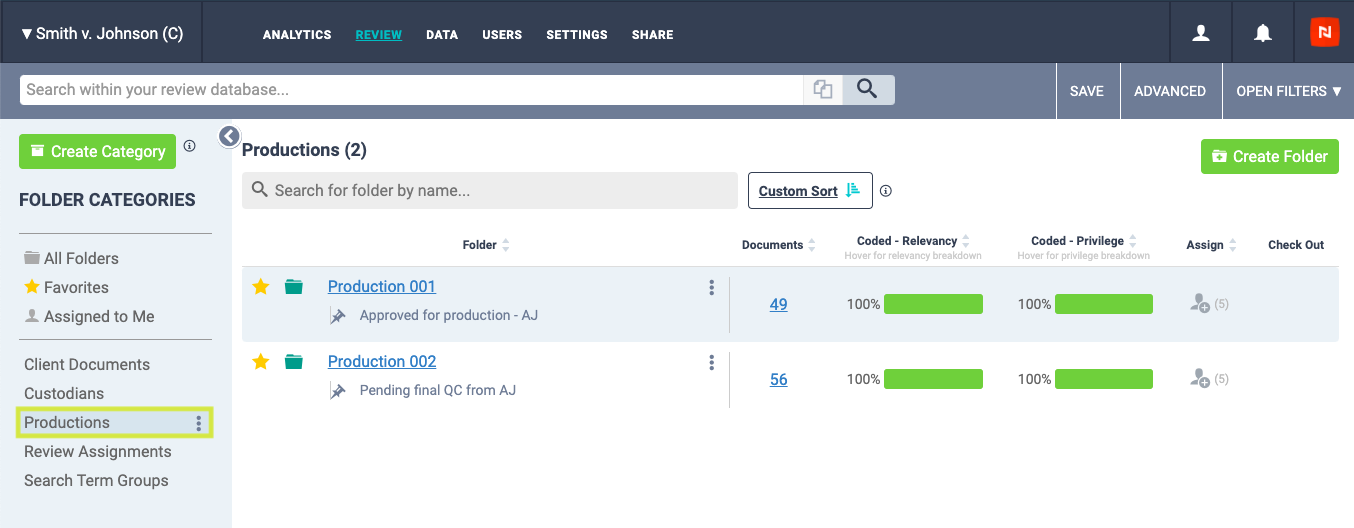
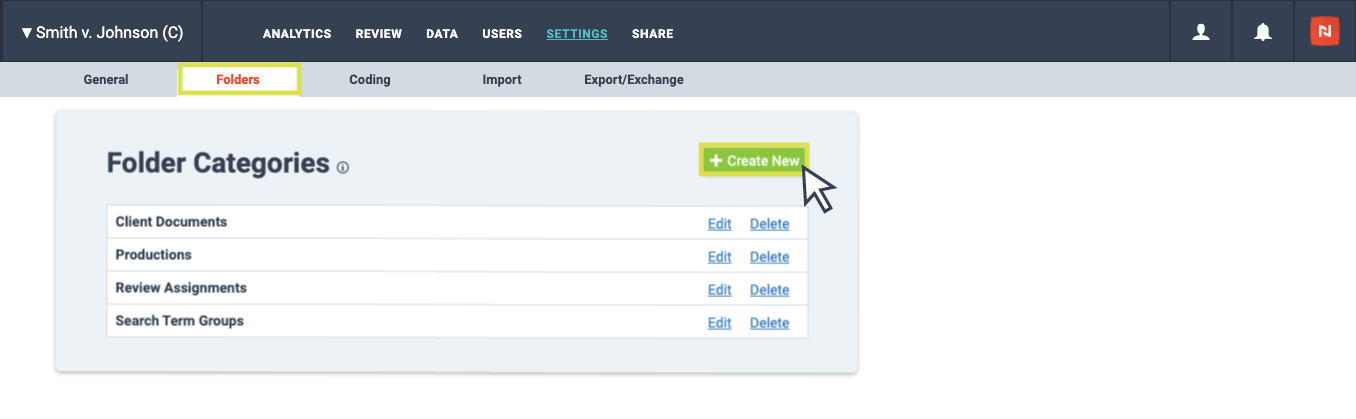
Advanced users can also create a new category from the SETTINGS tab in both Discovery and Litigation databases.
In Discovery, navigate to SETTINGS tab > Folders > Folder Categories, and click Create New.
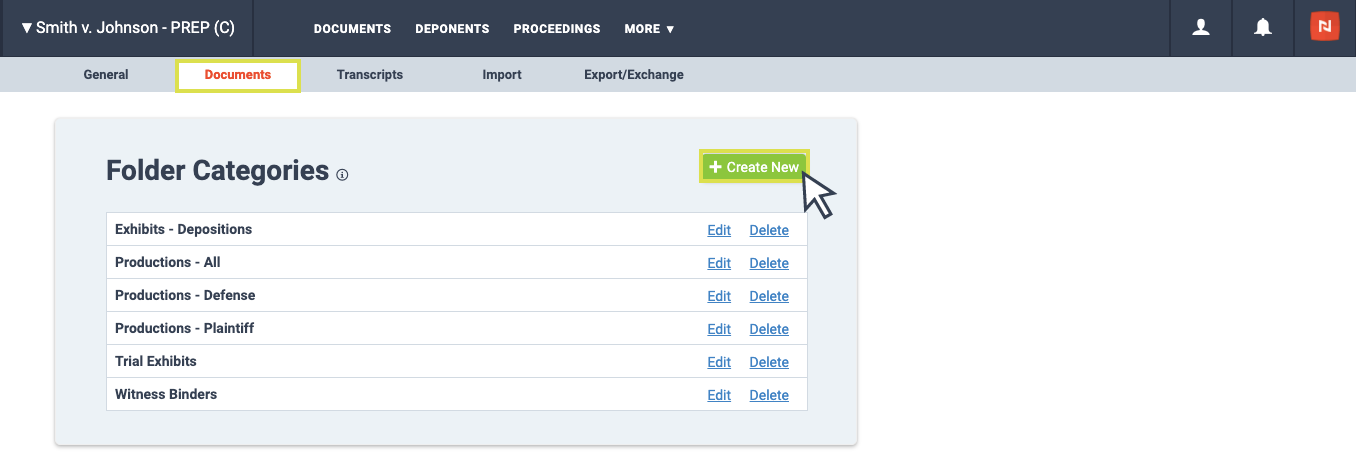
In Litigation, navigate to MORE drop-down tab > Settings > Documents > Folder Categories, and click Create New.
 Once you click the green Create New button, you will be prompted to enter the Category Name, and select to which folders the Category should be applied (folders must be existing).
Note: Folders + Categories cannot have the same name. If you attempt to enter such during creation (or editing), you will be provided a warning.
After you've made your selections, click Create.
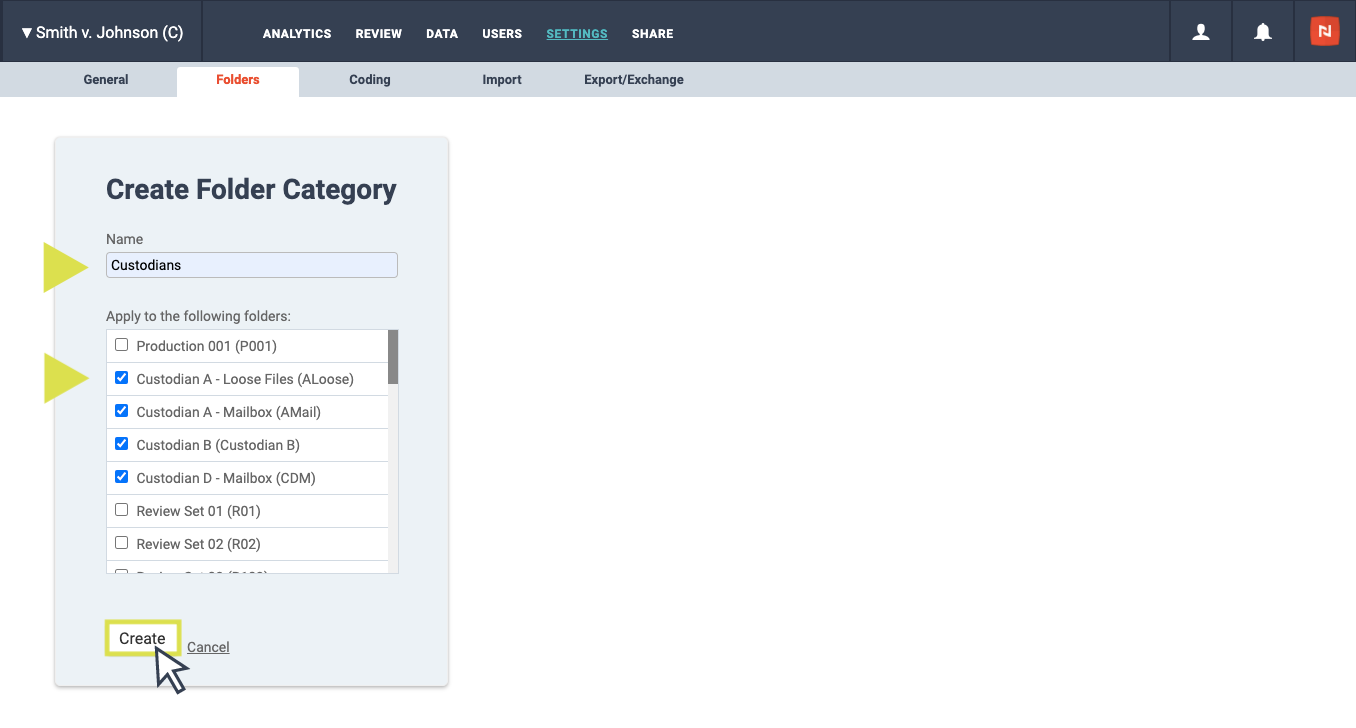
Once created, navigate back to the REVIEW or DOCUMENTS tab (Discovery and Litigation, respectively), and you will now see your newly created Category highlighted in the Category sidebar, and the associated folders displayed.
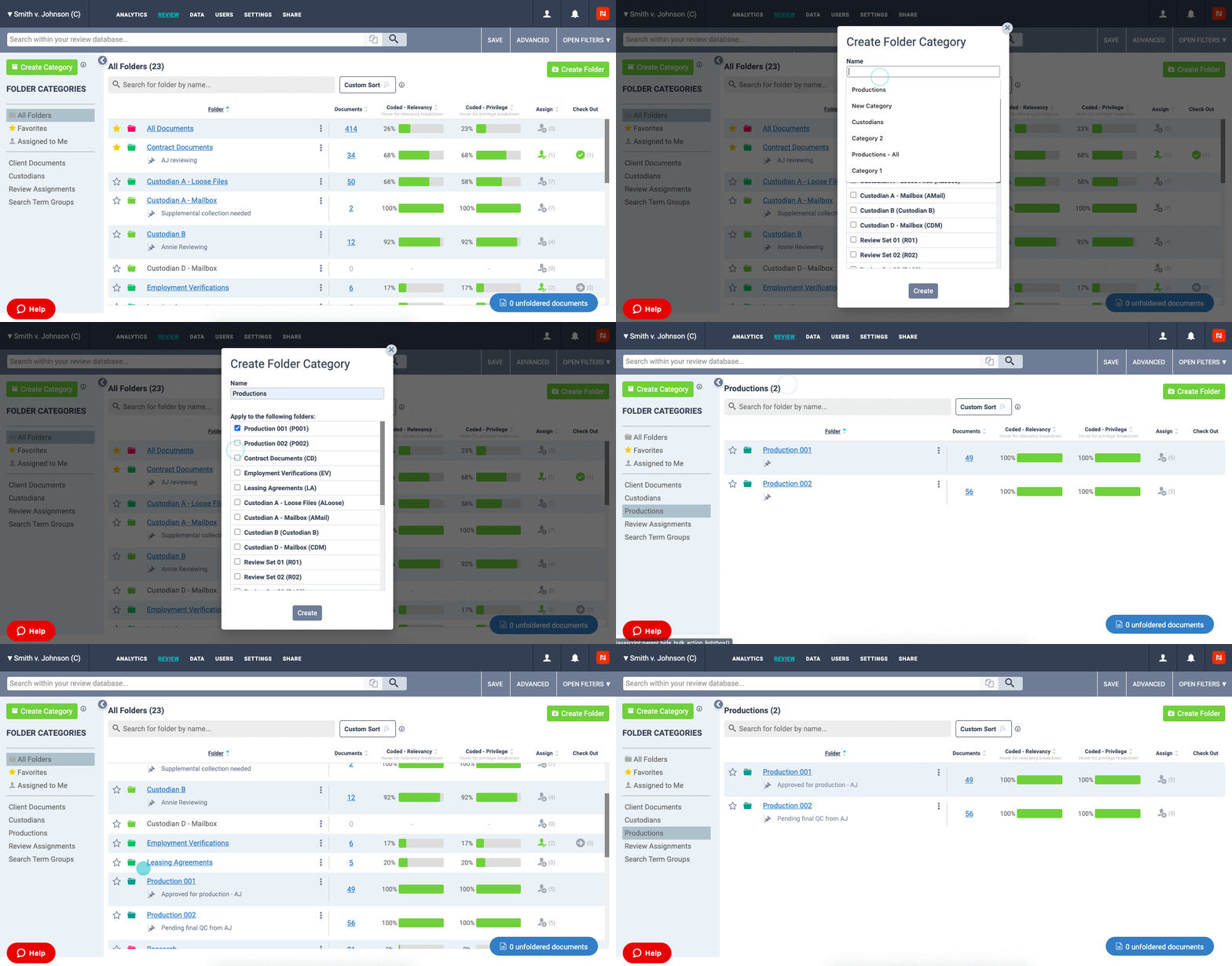
Edit a Category
Advanced users can edit any user-created Category from the folder list in both Discovery and Litigation databases.
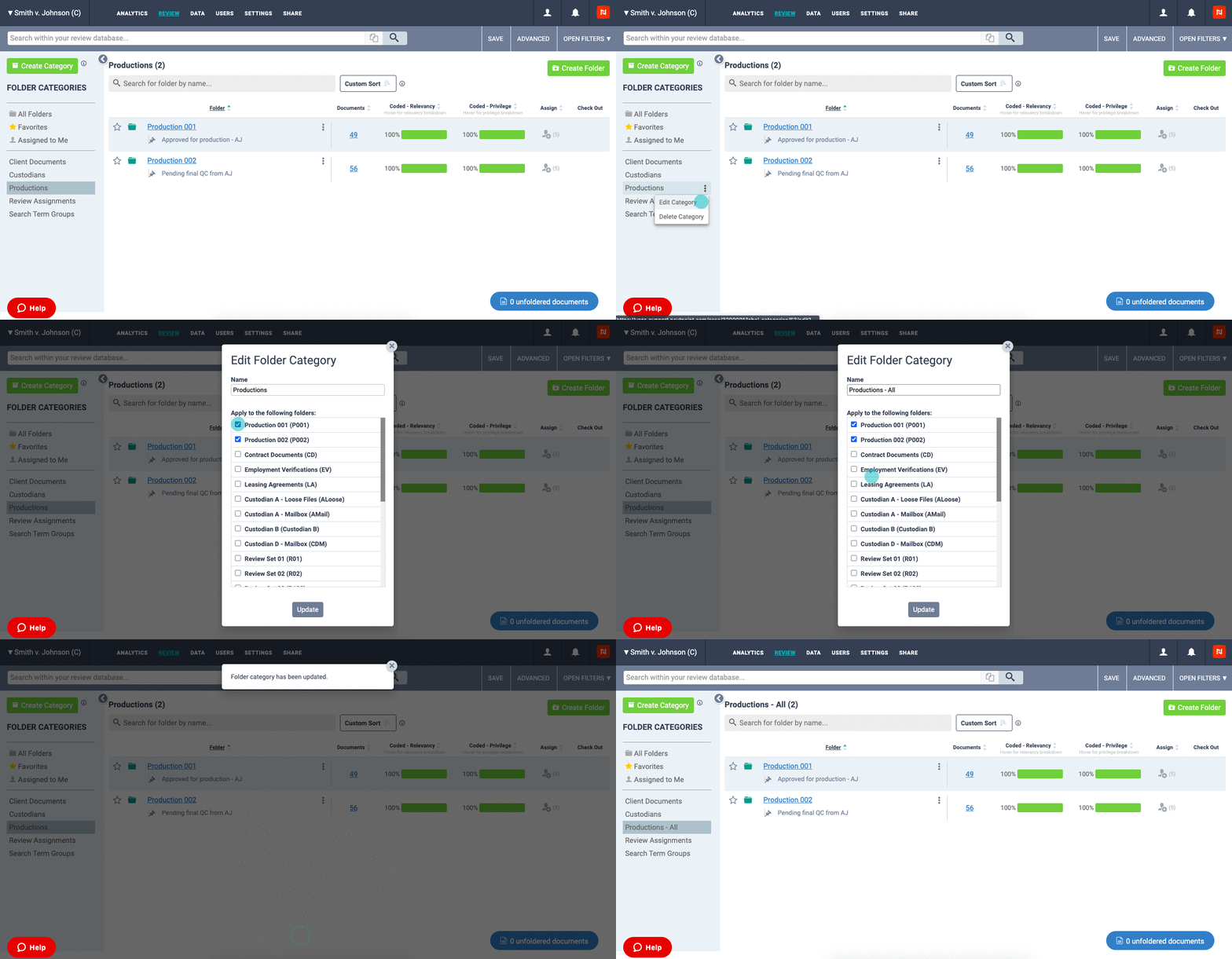
In Discovery, navigate to the REVIEW tab, open the Category sidebar with the arrow button at the top left, hover over the Category which you would like to edit, click the three-dot drop-down, and select Edit Category.
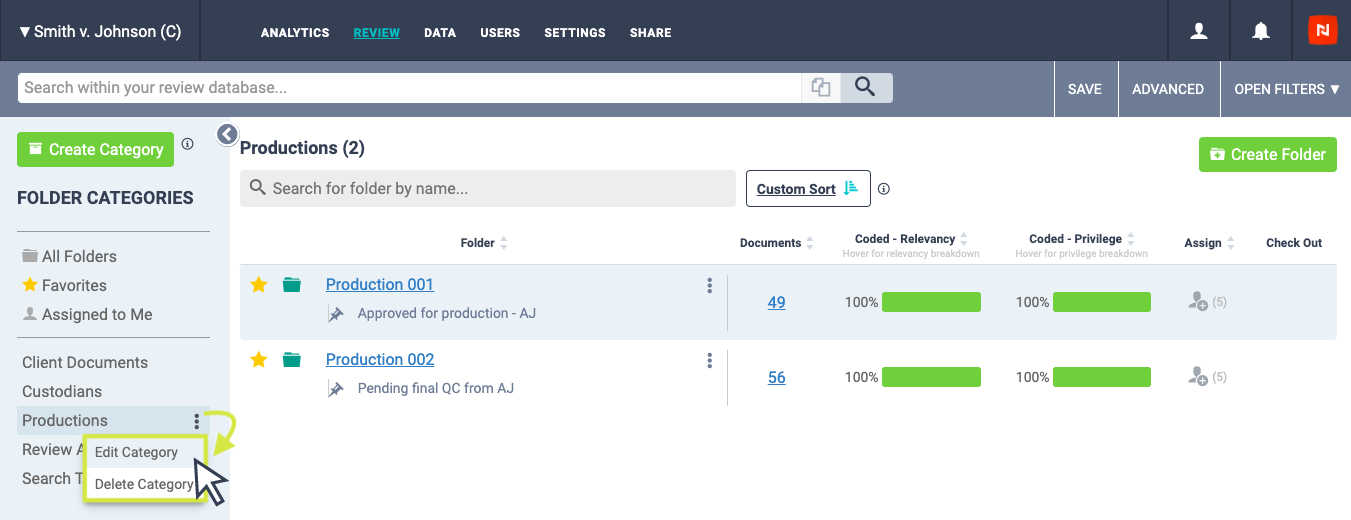
In Litigation, navigate to the DOCUMENTS tab, open the Category sidebar with the arrow button at the top left, hover over the Category which you would like to edit, click the three-dot drop-down, and select Edit Category.
Note: You must have the Folders tab displayed in order to open the Category sidebar in Litigation.

Once you click Edit Category, a pop-up modal will appear and prompt you to make any desired edits to the Category Name, and to which folders the Category should be applied (folders must be existing).
After you've made your selections, click Update.
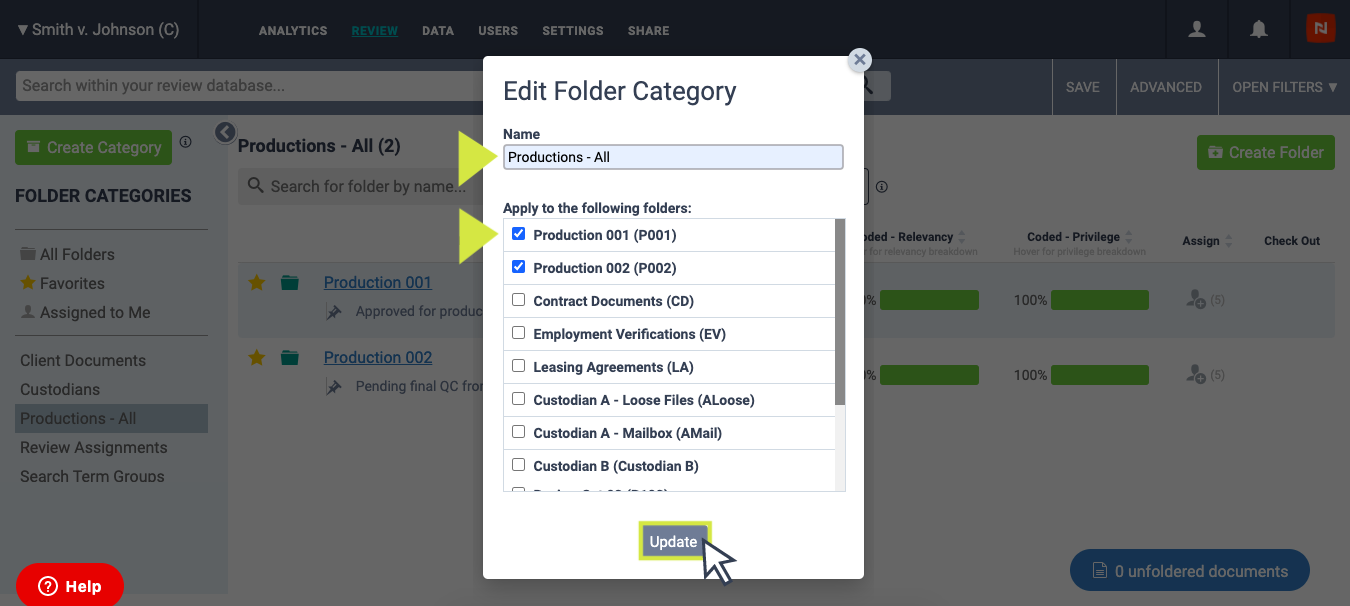
Once edited, you will now see your updated Category highlighted in the sidebar, and the associated folders displayed.
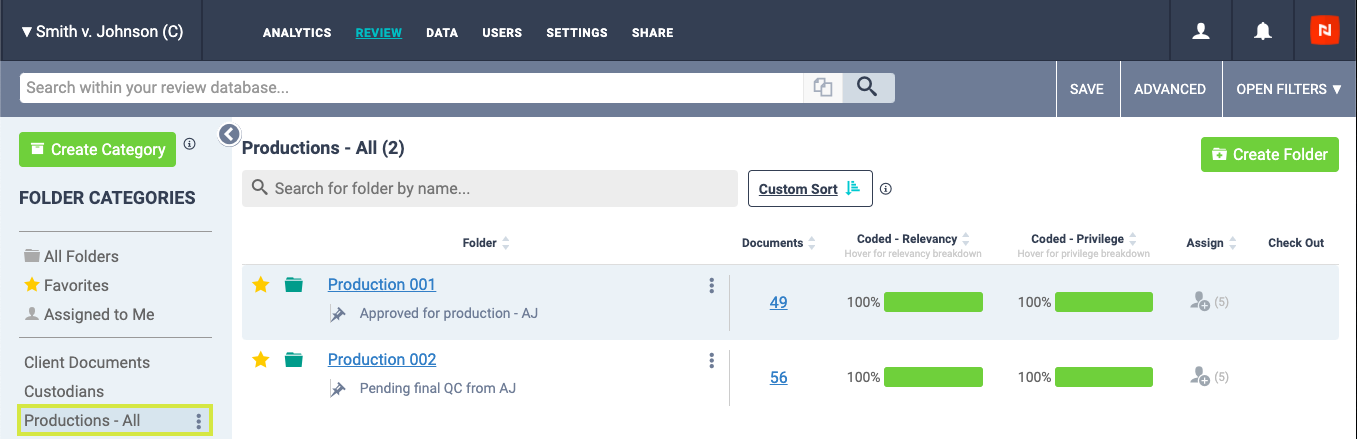
Advanced users can also edit a user-created Category from the SETTINGS tab in both Discovery and Litigation databases.
In Discovery, navigate to SETTINGS tab > Folders > Folder Categories, and click Edit.
In Litigation, navigate to MORE drop-down tab > Settings > Documents > Folder Categories, and click Edit.
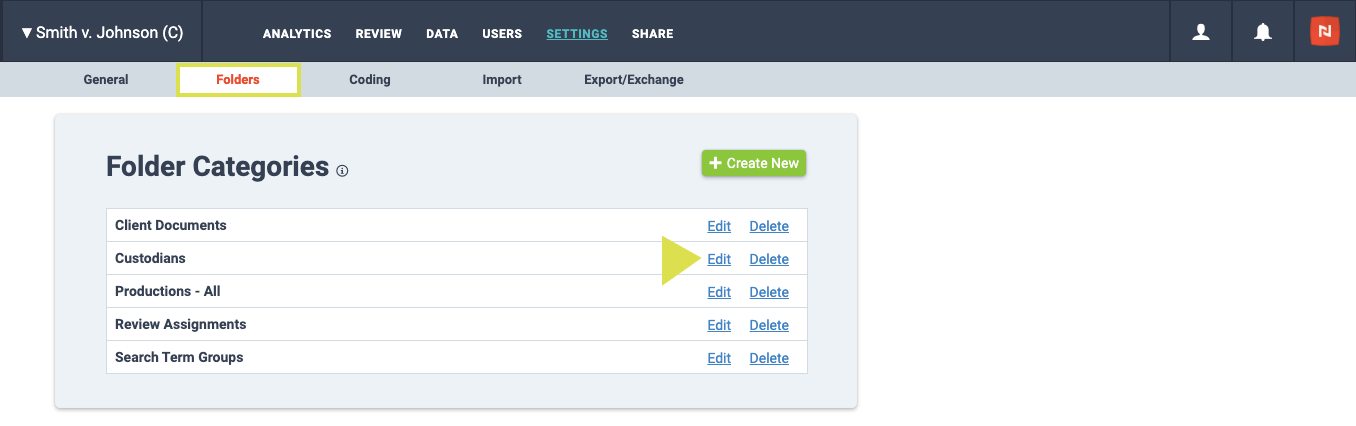
Once you click the Edit option, you will be prompted to make any desired edits to the Category Name, and to which folders the Category should be applied (folders must be existing).
After you've made your selections, click Update.

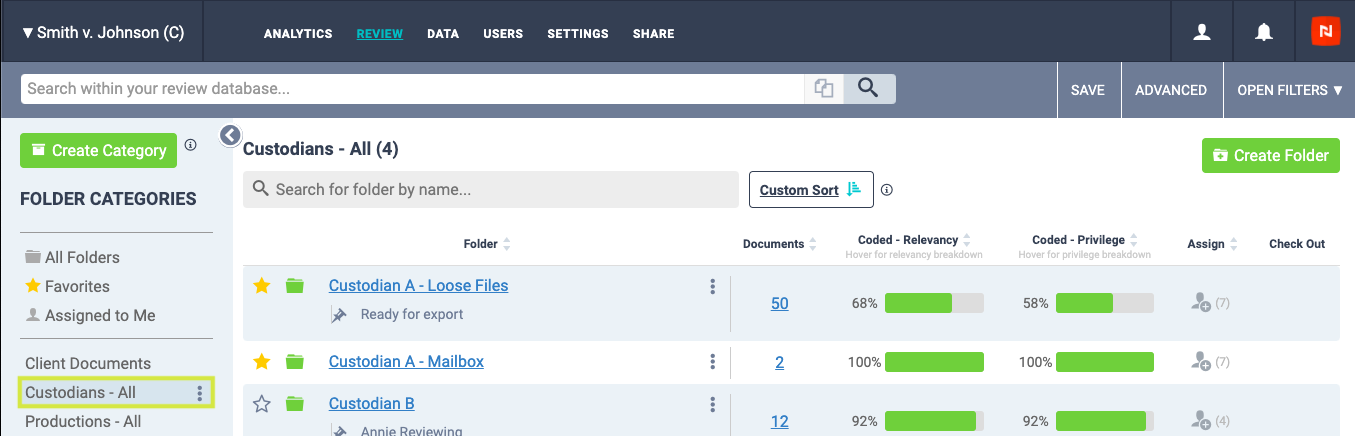
Once edited, navigate back to the REVIEW or DOCUMENTS tab (Discovery and Litigation, respectively), and you will now see your newly updated Category in the Category sidebar, and the associated folders displayed.
Delete a Category
Advanced users can delete any user-created Category from the folder list in both Discovery and Litigation databases.
PLEASE NOTE: Deleting a Category will not affect any associated folders or documents.
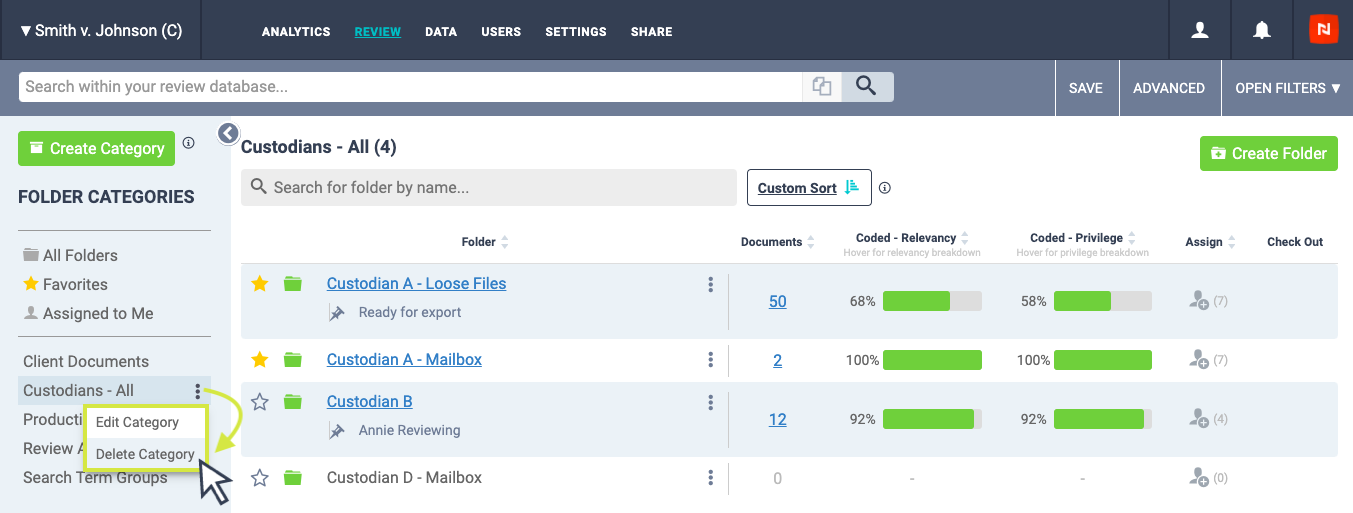
In Discovery, navigate to the REVIEW tab, open the Category sidebar with the arrow button at the top left, hover over the Category which you would like to delete, click the three-dot drop-down, and select Delete Category.
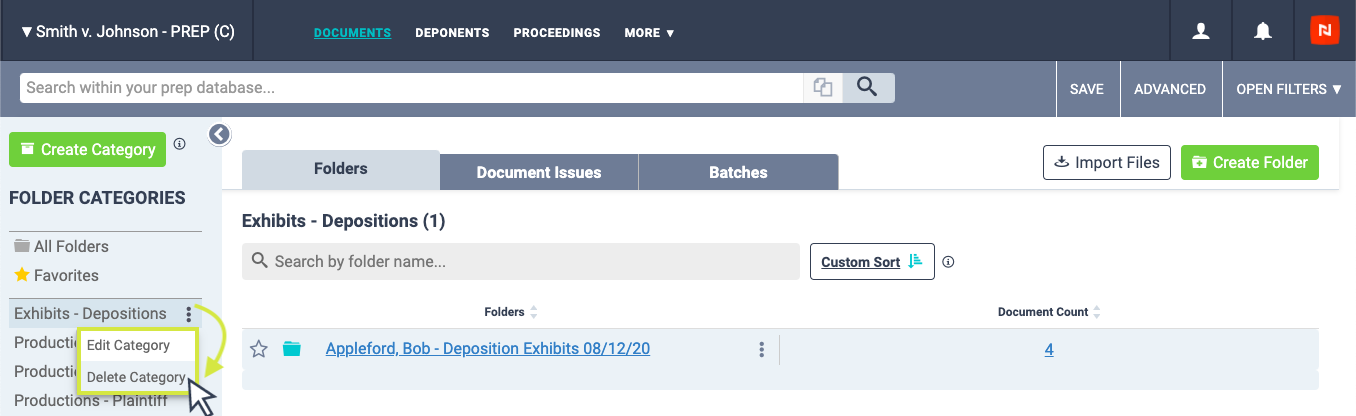
In Litigation, navigate to the DOCUMENTS tab, open the Category sidebar with the arrow button at the top left, hover over the Category which you would like to delete, click the three-dot drop-down, and select Delete Category.
Note: You must have the Folders tab displayed in order to open the Category sidebar in Litigation.
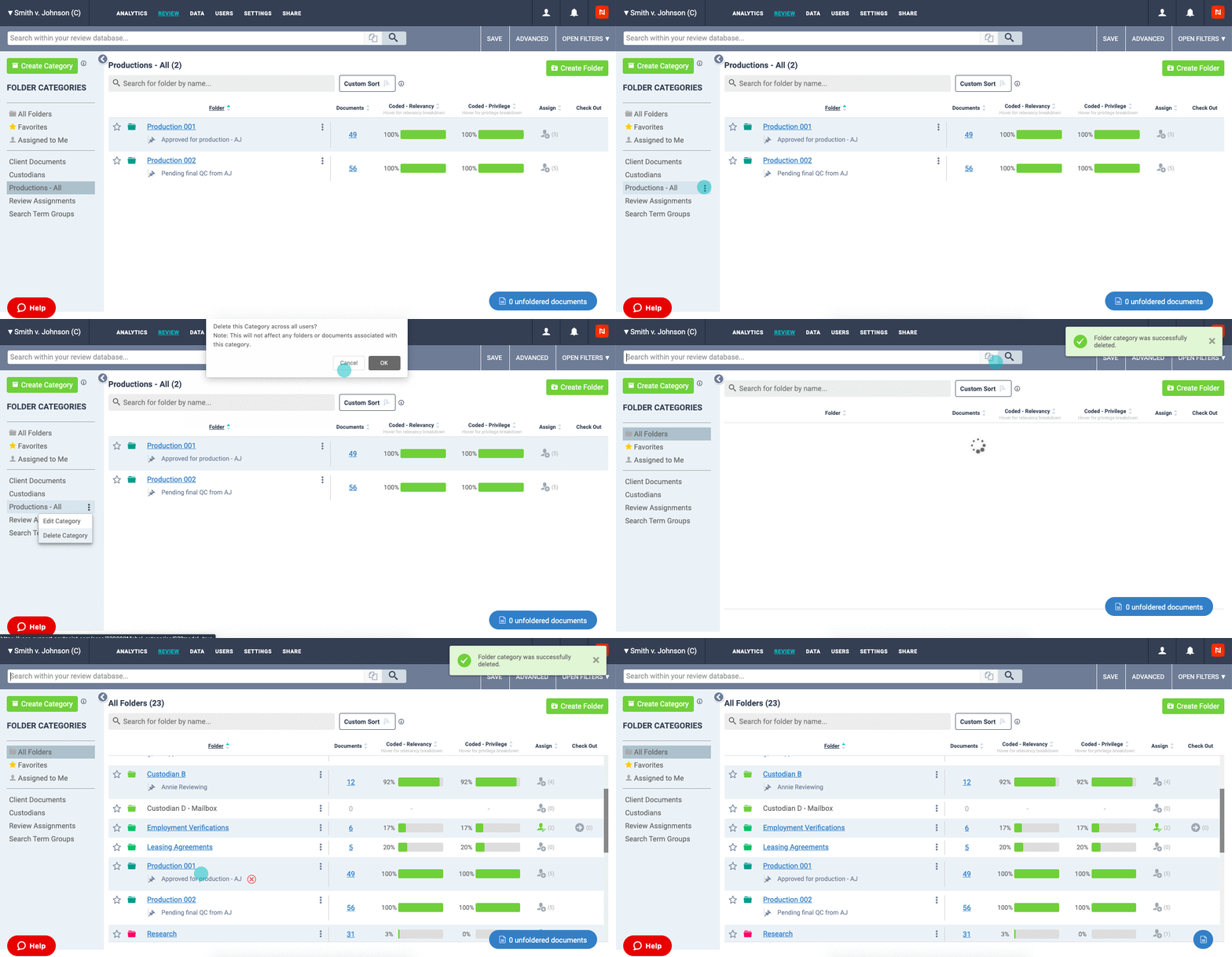
Upon clicking the Delete Category option, you will be prompted to confirm you would like to delete the Category and after confirmation it will be removed from the Category lists in both the Category sidebar and Settings.
Advanced users can also delete a user-created Category from the SETTINGS tab in both Discovery and Litigation databases.
PLEASE NOTE: Deleting a Category will not affect any associated folders or documents.
In Discovery, navigate to SETTINGS tab > Folders > Folder Categories, and click Edit.
In Litigation, navigate to MORE drop-down tab > Settings > Documents > Folder Categories, and click Edit.
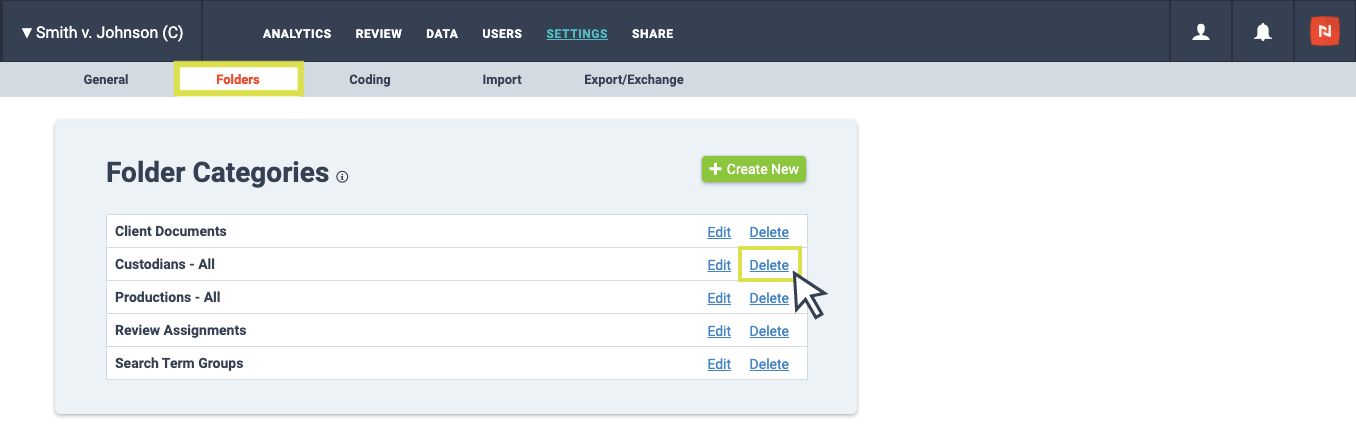
Upon clicking the Delete option, you will be prompted to confirm you would like to delete the Category and after confirmation it will be removed from the Category lists in both Settings and the Category sidebar.
Apply a Category during Folder creation
Advanced users can associate any existing (custom) Category to a Folder when creating an individual Folder. This is applicable in both Discovery and Litigation databases.
In Discovery, navigate to the REVIEW tab, click the green Create Folder button.
In Litigation, navigate to the DOCUMENTS tab, click the green Create Folder button.
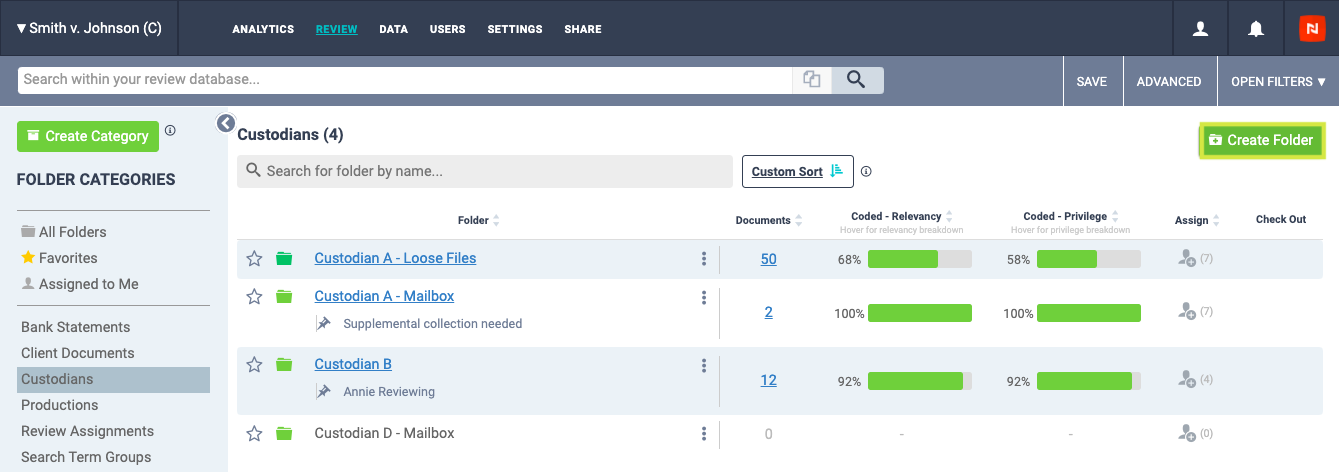
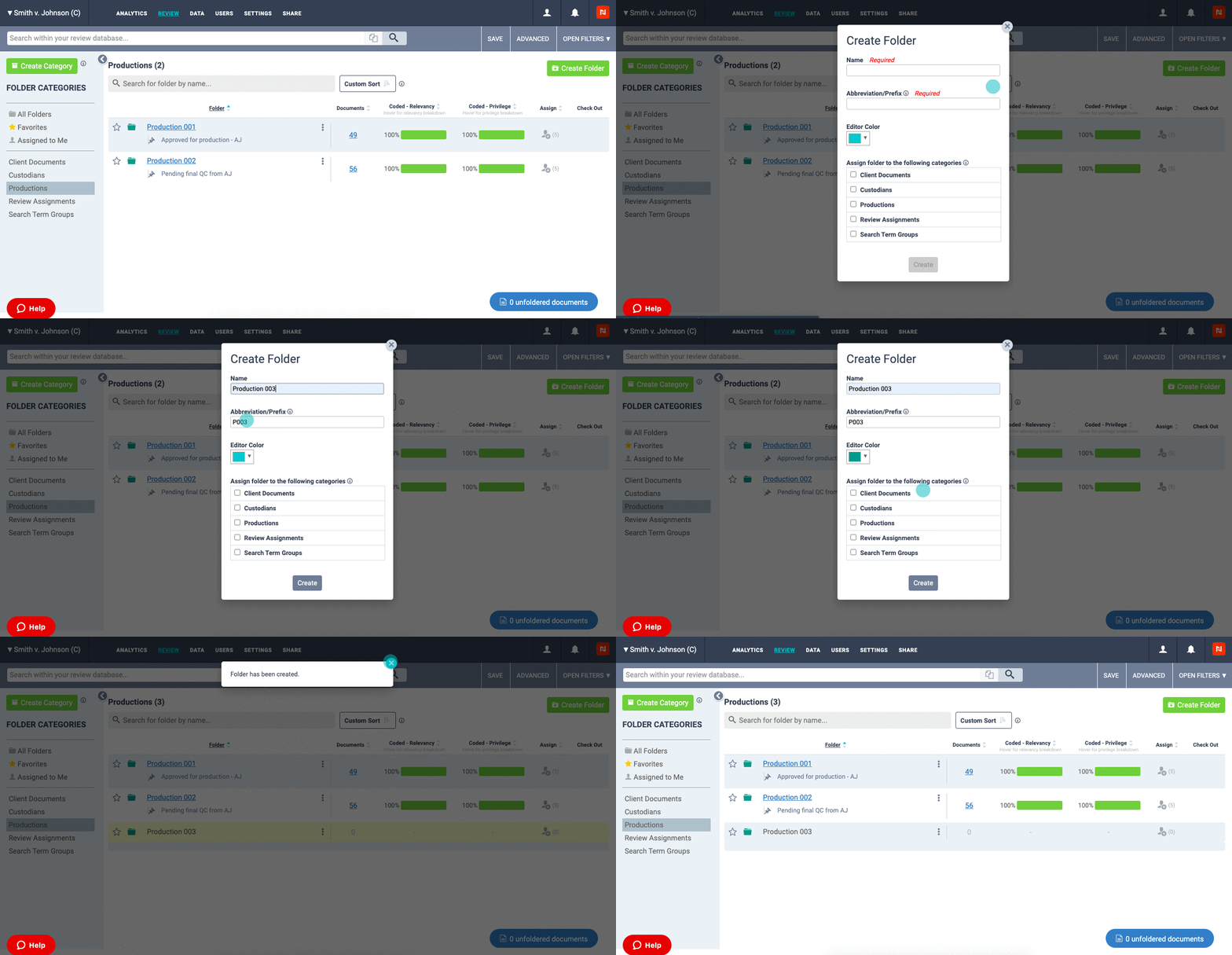
Once you click the green Create Folder button, a pop-up modal will appear and prompt you to enter the Folder Name, Abbreviation/Prefix, and select to which Categories the Folder should be associated (categories must be existing).
Note: Folders + Categories cannot have the same name. If you attempt to enter such during creation (or editing), you will be provided a warning.
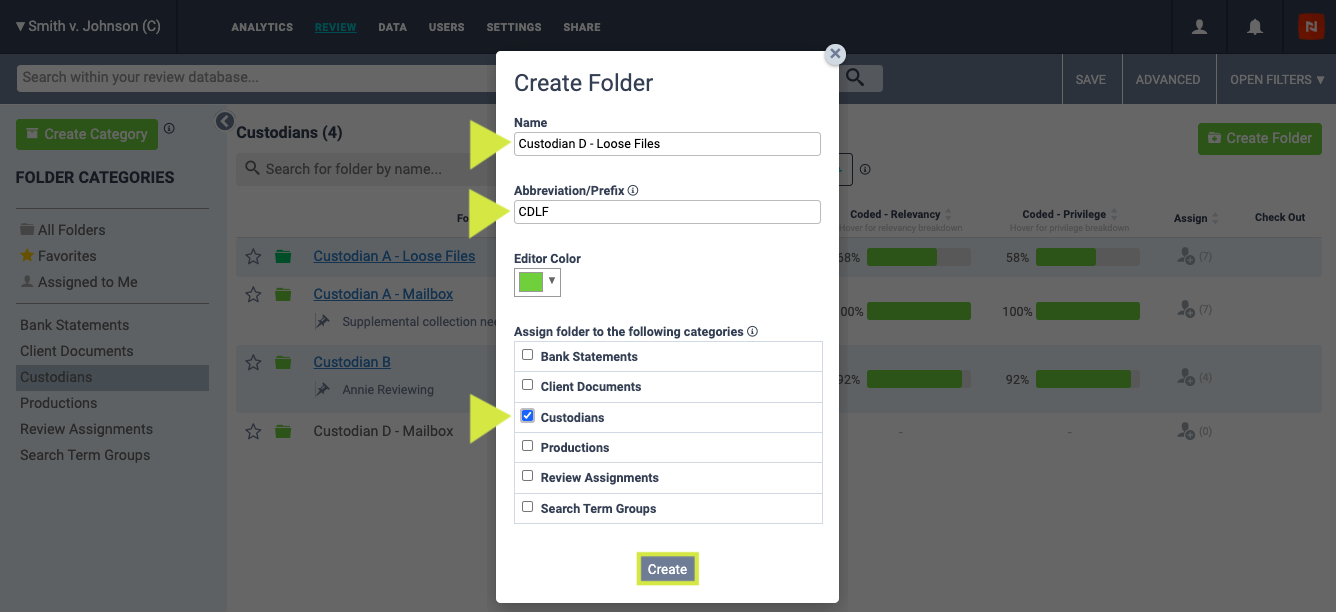
After you've made your selections, click Create.
Advanced users can associate any existing (custom) Category to a Folder when creating an individual Folder. This is applicable in both Discovery and Litigation databases.
In Discovery, navigate to the REVIEW tab, navigate to the Folder you would like to edit, click the three-dot drop-down to the right of the folder name, and select Edit Folder.
In Litigation, navigate to the DOCUMENTS tab, navigate to the Folder you would like to edit, click the three-dot drop-down to the right of the folder name, and select Edit Folder.

Once you click Edit Folder, a pop-up modal will appear and prompt you to make any desired edits to the Folder Name, Abbreviation/Prefix and select to which Categories the folder should be associated with (categories must be existing).
After you've made your selections, click Update.
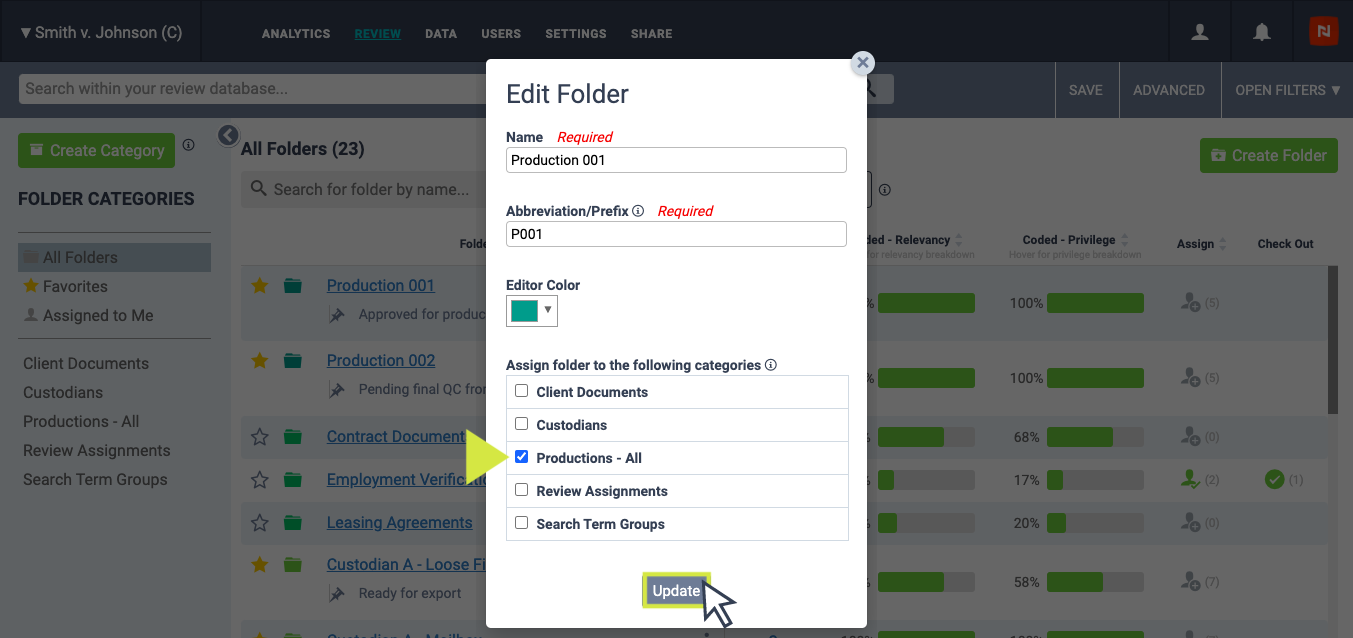
Once edited, you will now see your updated Category highlighted in the sidebar, and the associated folders displayed.
Working with Folder Categories
Release date: August 25, 2020
Every Discovery and Litigation database is equipped with two preset Categories: All Folders and Favorites.
While All Folders has always been an existing view, the addition of Favorites makes it simple to manage your most accessed or top of mind folders in one location. Favorites are unique to each user and available for all access levels.
To get started organizing your favorite folders, navigate to your folder list. In Discovery, the folder list is located via the REVIEW tab. In Litigation, the folder list is located via the DOCUMENTS tab.
To add a folder to your Favorites category, simply click the star icon and it will turn yellow.
To remove a folder from your favorites, click the star icon again so it is a gray outline. Doing so will remove it from your Favorites list but the folder will remain in All Folders and any other associated custom categories.
Managing your 'Favorites' Folder Category
Overview
Gain insight into your Discovery status with the progress bars for relevancy and privilege coding. Take advantage of these relevancy and privilege insights as you track progress to understand "what you have left," QC a production folder for consistent coding before Bates endorsements are applied, and more.
To access Discovery folder insights, first navigate to the REVIEW tab in any Nextpoint Discovery database. At first glance, the green + gray progress bars will display the percentage of documents in a particular folder which have been coded for Relevancy and Privilege. Coded is defined as any status other that "Not Reviewed."
If you want a closer look at the specific review statistics, simply hover over a particular progress bar.
Coded - Relevancy progress bars will display the specific counts for Responsive, Non-Responsive, Requires Follow-up, and Not Reviewed. The number of each will be displayed on hover will be clickable.
Coded - Privilege progress bars will display the specific counts for Privileged, Not Privileged, and Not Reviewed. The number of each will be displayed on hover and all counts will be clickable.
Add Notes for Streamlined Collaboration
Folder Notes enable all users to annotate at the folder level. These notes can indicate information such as the status of the review (e.g. "Ready for final QC), Bates ranges of the documents contained within the folder, and more. These notes are completely up to you.
To apply a folder note, simply click the three-dot drop down next to any name in your folder list, select Add Note, and enter your text.
As an added bonus, Folder Notes are now available in Litigation in an effort to streamline functionality across Discovery and Litigation.
FAQ: What if I am unable to access the three-dot drop down next to folders?
If you are suddenly unable to access any three-dot drop-down in your database, we first recommend refreshing your browser in order to clear the browser's cache. There are several ways to accomplish this:
- PC: Hold Ctrl and click Refresh in your browser
- PC: Hold Ctrl and click F5
- Mac: Hold Ctrl + Shift and click R
If this does not do the trick, please try closing your browser completely and open a new window.
More Information on Folders
- Read more on our first phase of folder management and navigation updates here >>
- Read more on creating Folders in Discovery here and in Litigation here >>
Advanced Folder Insights for Discovery & Litigation
Document Fields & Coding
Overview
Nextpoint reduces review time by detecting duplicate documents and removing them from the review set. Previously, this only applied to exact copies in the same file format.
Near duplicate detection extends this functionality by identifying documents with similar content, even when formats differ (for example, an email printed to PDF). The feature compares OCRed text across documents and assigns a similarity score.
When reviewing a document, you can view related documents above a defined similarity threshold, making it easier to folder or code similar materials. Additional options—such as folder-specific comparisons or master set creation— are available on a custom basis.
How to Access Near Duplicate Detection
While reviewing a document, click the Contact Us button to request near duplicate detection. Near duplicate detection is an add-on feature available for an additional cost and must be enabled per database.
After submitting the request, a Nextpoint team member will follow up to understand your needs, and our developers will enable near duplicate detection.
Viewing Near Duplicates
Once the feature is enabled, follow these steps to view near duplicates:
- Open the Related Documents tab.
- Click the Duplicates tab.
- Exact duplicates appear first, followed by near duplicates. In the Near Duplicates section, each document displays a similarity score to the right of the document pill.
- Bulk code near duplicates just as you would other related documents in this tab.
- Modify the Duplicates tab view using filters to show or hide exact duplicates and adjust the similarity score threshold for near duplicates.
If a document has many near duplicates, they are grouped by similarity score and can be added to a grid view. Links are available for similarity thresholds of 80, 85, 90, and 95. Clicking one of these links runs a search that includes the source document’s NPID and the selected similarity score floor:
near_duplicates:(89552 and similarity_score:>=95)
From the grid view, you can perform bulk actions on similar documents. You may also manually adjust the similarity score threshold directly in the search bar.
For additional information about near duplicate detection or to schedule a demo, contact support@nextpoint.com or click the Enable Near Dupe Detection button within your database.
Near Dupe Detection
Confidentiality coding in the NextGen experience covers both bulk designation across a set of documents and coding individual documents, with the same real-time job tracking used for Bates stamping. This article walks through setting up confidentiality codes, applying a code in bulk, tracking that job, and coding individual documents.
In this article:
- Step 1: Set up confidentiality codes
- Step 2: Apply a confidentiality code in bulk
- Step 3: Track your confidentiality job
- Step 4: Review the Completed Jobs table
- Handling documents that error during stamping
- Verify and next steps
- Document-level confidentiality coding
Step 1: Set up confidentiality codes
Usually done once, early in a case.
- Go to Settings > Coding > Confidentiality Codes (Litigation: More > Settings > Documents > Confidentiality Codes).
- Use the default codes — Highly Confidential and Confidential — or click Create New to add your own.
- For a new code, enter the code name and choose its placement. Many users place confidentiality stamps opposite their Bates stamp (for example, left if Bates is on the right — see Bates Stamping in the NextGen Experience, but you can stack them or alternate sides as your case requires.
Confidentiality codes apply at both the document level and the bulk level.
Step 2: Apply a confidentiality code in bulk
Before you start, confirm you know which documents should receive which code — a saved search or a folder both work as your starting point.
- Run a search or select a folder to find the documents you want to code. For example, search
confidentiality:falseto find documents that haven't been designated yet. - Select the documents.
- Open Bulk Actions (bottom of the page), check Confidentiality, and choose the code(s) to apply.
- Click Update.
A confirmation modal appears while the selected documents are updated with the designation, and the stamping job then starts automatically.
Step 3: Track your confidentiality job
Go to Data > Other Processes (Litigation: More > Data > Other Processes). This is the same page used to track Bates stamp jobs and stamp removals, so your confidentiality job may appear alongside other job types if you're running more than one over time. Only one job runs at a time, and exports and additional endorsements stay unavailable while a job is in progress.
While the job is running, the in-progress job card shows:
- Job type (Update confidentiality code) and the code(s) being applied
- A progress bar and running count of documents stamped (X of Y)
- How long ago the job started, and which user started it
Note that a confidentiality job's card doesn't show a folder — since it can be triggered from a search as well as a folder.
The page updates automatically every 15 seconds as the job progresses.
Step 4: Review the Completed Jobs table
When your job finishes, it moves into the Completed Jobs table on the same Data > Other Processes page.
For a confidentiality job, each row shows:
| Column | What it shows |
|---|---|
| Job Type | Update confidentiality code |
| Template / Designation | The confidentiality code(s) added or removed |
| Folder | Blank — confidentiality jobs stem from a search or selection, not always a single folder |
| User | Who initiated the job |
| Started / Completed | Timestamps in your time zone — useful for seeing how long the job took |
| Docs | Number of documents included in the job |
| Status |
Complete (green) most of the time. Complete with errors shows a yellow/red indicator with an error count — hover and click to open the affected documents. |
This table is a useful record as your case moves forward — it gives you a clear history of what was coded, when, and by whom.
Handling documents that error during stamping
Most stamping jobs complete cleanly. When documents do error, it's typically due to underlying issues with the source PDF: intrinsic rotations, unusually large or complex drawings, layers, or forms.
If you see a Complete with errors status:
- Review the flagged documents for any common trend.
- Try Regenerate Searchable PDF at the document-level for the affected documents (especially for a small number of errors), then re-stamp the document.
- If you need help, contact support@nextpoint.com. Common paths from here include pulling the affected documents into a supplemental folder while you export the rest of the production, or working with the support team to resolve the documents before exporting.
Verify and next steps
Once the job completes, spot-check a few of the documents to confirm the designation applied as expected. From here, you can move on to production steps such as Bates stamping (see Bates Stamping in the NextGen Experience) or exporting your production.
Document-level confidentiality coding
You can also apply a confidentiality code to a single document — available in both the NextGen experience and Legacy.
- Open the document.
- In the right-hand panel, under your discovery fields, select the applicable confidentiality code.
- Click Save (or Save and Next). The document refreshes to show the code — this is usually quick, but if you see a placeholder, click refresh to see the applied stamp.
Confidentiality Coding & Stamping in NextGen
Below is a comprehensive list of all the metadata fields Nextpoint extracts per file type.
The second matrix shows which metadata fields Nextpoint extracts and maps from native files during processing, with checkmarks indicating which fields are available for each document type (Email, E-file, Attachment, etc.).
Quick Note: This only covers Nextpoint's native extraction capabilities. Metadata can only be extracted from present data and will only populate for available fields. Additional data can always be applied via a load file or overlay to populate other fields as needed.
Fields and Descriptions
| User-facing field name | Description |
| Author | Combined author field with priority order: Emails: Email Author E-files and attachments: Document Last Author, then Document Author |
| Subject/Title | Combined field displaying email subject for emails and title field for e-files and attachments. |
| Document Date | Combined date field with priority order: Emails: Sent date, then received date E-files and attachments: Modified date, then created date |
| Document Author | Author field extracted from native file metadata. |
| Document Last Author | Last "Saved By" field extracted from native file metadata. |
| Document Subject | Subject field value extracted from metadata of native file |
| Document Title | Title field extracted from native file metadata. |
| Page Count | Number of processed images for the document. |
| Document Type | Category of document based on origin: Email (natively processed email files), Attachment (files extracted from emails), or Efile (standalone documents not imported as ranged images with load file). Values can be overwritten by load file data. |
| File Name | Original filename of the native file. For email records, contains the email subject. |
| File Path | Full path of the original file. For loose file/native imports, shows original file location. For load file imports, read from mapped file_path field. |
| MD5 Hash | MD5 hash value of the native document for file integrity verification. |
| Shortcut | Multipurpose field capturing pathing, folder structure, or naming information about imported documents. |
| App Name | Application name extracted from native file metadata. |
| Last Print Date | Date the native file was last printed (Microsoft Office documents only). |
| Created Date Time | Creation date and time of the native file when imported without produced images. |
| Encrypted | Indicates whether the native document was encrypted at import (Yes/No). |
| Modified Date Time | Date and time the native file was last modified. |
| Email Date | Combined datetime field prioritizing email sent date, then email received date. |
| Email Delivery Date | Date when email was delivered in MM/DD/YYYY format. |
| Email Date Time | Time when email was received in HH:MM:SS format using local timezone when available. |
| Email Date Sent | Date when email was sent in MM/DD/YYYY format. |
| Email Time Sent | Time when email was sent in HH:MM:SS format using local timezone when available. |
| Email Date Received | Date when email was received in MM/DD/YYYY format. |
| Email Time Received | Time when email was received in HH:MM:SS format using local timezone when available. Defaults to Universal Time (UTC) when local timezone is not provided. |
| Recipients | All email recipients separated by semicolons. Exact format depends on email client address book and may include names, email addresses, and/or display names. |
| Email Message Id | Unique message identifier extracted from email metadata. |
| Email Author | Sender of the email message. |
| Email Received | Last server datetime when email was received. |
| Email Sent | Date and time when email was sent. |
| BCC | Blind carbon copy recipients for email. Multiple recipients separated by semicolons. |
| CC | Carbon copy recipients for email. Multiple recipients separated by semicolons. |
| Email Subject | Subject line of the email message. |
| File Extension | File extension of the processed document, derived from the original filename. |
| File Size | File size of the processed document in bytes. |
| Root Folder | For Loose File imports only. When importing files from the File Room, this captures the parent folder name of each imported file. Rather than storing the full file path, this field contains only the root folder name, relative to the folder selected during the import process. |
| Mailbox File | Filename of the mailbox archive from which the email was extracted (if applicable). |
| Mailbox Path | Full sequence of mailboxes and sub-mailboxes specifying the email's location within the mailbox structure. |
| Master Date Time | For all emails, the master date time is the email_sent date. If email_sent is not available, then use email_received. For all attachments of emails, the master date time is the master date time of their parent email. For all other documents, the master date time is the modified_date_time. If modified_date_time is not available, use created_date_time. |
Native Extraction by File Type
| User-Facing Field Name | Email (msg, eml) | Efile (General) | Attachment | Mailbox Container (pst, mbox) | Images | Multimedia |
| Author | ☑️ | ☑️ | ☑️ | -- | -- | -- |
| Subject/Title | ☑️ | ☑️ | ☑️ | -- | -- | -- |
| Document Date | ☑️ | ☑️ | ☑️ | -- | -- | -- |
| Document Author | -- | ☑️ | ☑️ | -- | -- | -- |
| Document Last Author | -- | ☑️ | ☑️ | -- | -- | -- |
| Document Subject | -- | ☑️ | ☑️ | -- | -- | -- |
| Document Title | -- | ☑️ | ☑️ | -- | -- | -- |
| Page Count | ☑️ | ☑️ | ☑️ | ☑️ | ☑️ | -- |
| Document Type | ☑️ | ☑️ | ☑️ | ☑️ | ☑️ | ☑️ |
| File Name | ☑️ | ☑️ | ☑️ | -- | ☑️ | ☑️ |
| File Path | -- | ☑️ | -- | -- | ☑️ | ☑️ |
| MD5 Hash | ☑️ | ☑️ | ☑️ | ☑️ | ☑️ | ☑️ |
| Shortcut | -- | ☑️ | ☑️ | -- | ☑️ | ☑️ |
| App Name | -- | ☑️ | ☑️ | -- | ☑️ | ☑️ |
| Last Print Date | -- | ☑️ | ☑️ | -- | -- | -- |
| Created Date Time | -- | ☑️ | ☑️ | -- | -- | -- |
| Encrypted | -- | ☑️ | ☑️ | -- | -- | -- |
| Modified Date Time | -- | ☑️ | ☑️ | -- | -- | -- |
| Email Date | ☑️ | -- | -- | -- | -- | -- |
| Email Delivery Date | ☑️ | -- | -- | -- | -- | -- |
| Email Date Time | ☑️ | -- | -- | -- | -- | -- |
| Email Date Sent | ☑️ | -- | -- | -- | -- | -- |
| Email Time Sent | ☑️ | -- | -- | -- | -- | -- |
| Email Date Received | ☑️ | -- | -- | -- | -- | -- |
| Email Time Received | ☑️ | -- | -- | -- | -- | -- |
| Recipients | ☑️ | -- | -- | -- | -- | -- |
| Email Message Id | ☑️ | -- | -- | -- | -- | -- |
| Email Author | ☑️ | -- | -- | -- | -- | -- |
| Email Received | ☑️ | -- | -- | -- | -- | -- |
| Email Sent | ☑️ | -- | -- | -- | -- | -- |
| BCC | ☑️ | -- | -- | -- | -- | -- |
| CC | ☑️ | -- | -- | -- | -- | -- |
| Email Subject | ☑️ | -- | -- | -- | -- | -- |
| File Extension | ☑️ | ☑️ | ☑️ | ☑️ | ☑️ | ☑️ |
| File Size | ☑️ | ☑️ | ☑️ | -- | ☑️ | ☑️ |
| Root Folder | -- | ☑️ | -- | -- | ☑️ | ☑️ |
| Mailbox File | ☑️ | -- | ☑️ | -- | -- | -- |
| Mailbox Path | ☑️ | -- | ☑️ | -- | -- | -- |
| Master Date Time | ☑️ | ☑️ | ☑️ | -- | -- | -- |
Metadata Availability by Document Type
*This functionality is available for Advanced users only.
When reviewing a particular type of document or document set in Discovery (e.g. emails, search results, etc..), it can be helpful to create a Grid View for an "at a glance" snapshot of your results.
Creating a Grid View Template
- To create a custom Grid View, click SETTINGS at the top of the screen > choose the General tab > click Create New to make a new template.
Note: In the Grid View Column Templates section at the bottom, you can view the currently saved templates, as well as Edit or Delete. - Provide a Name for your template and click Save Template
- In the next screen, you can select fields which you would like to include in your Grid View Template. You can do this by dragging and dropping from the Available Fields (left) to the Current Fields (right).
Likewise, you can remove fields from your template by dragging and dropping from Current Fields to Available Fields.
- Once the fields you would like to include are in the Current Fields column on the right, you can click and drag field name(s) up and down to reorder.
- Select the default Sort Order if you would like to consistently sort results in this grid view by a particular attribute.
- When you are finished, click Save Template, and your template will be available in Grid View.
Using Your Grid View Templates
All Grid View Templates are available for selection after running a search OR filter under the REVIEW tab via the Views slider at the top right of the grid view.
To toggle your view, simply click the Views slider and select your view from the drop-down.
For more information on using Grid View and Chron View, click here >>
Return to Discovery Workflow
Setting Up Custom Grid Views in Discovery
To create key terms within your Discovery database, click SETTINGS > General and navigate to the Key Terms settings box and click "Edit".
In Litigation, Key Term settings are located in MORE > SETTINGS > Documents.
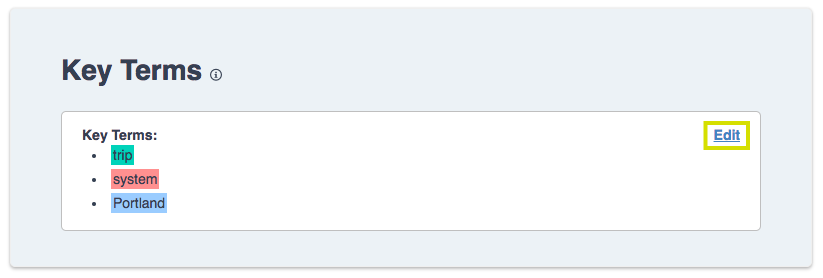
Adding, editing, or deleting key terms:
- To add: Click "Add New Term".
- To delete: Click the red cancel icon.
- To edit: Click the color box or the term itself.
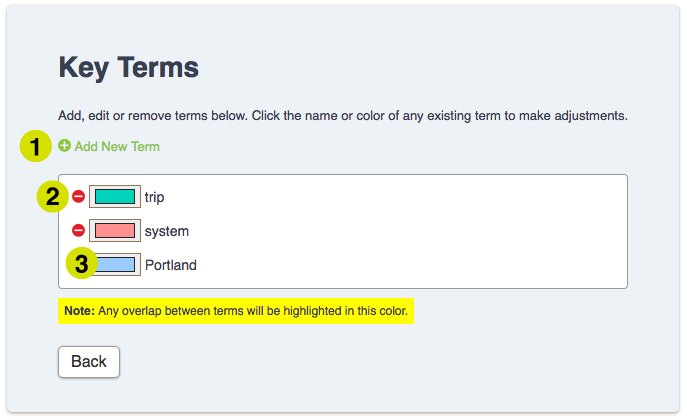
Adding key term highlights, continued:
After clicking the "Add New Term" button, type the term or phrase in the text box then click the color box to change the color. See image below.
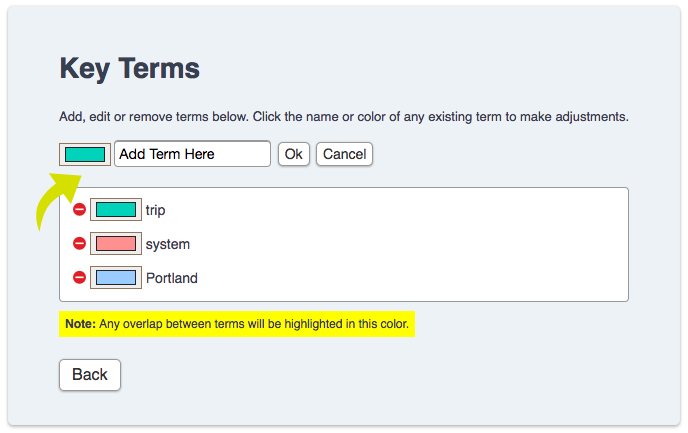
Choosing the color of your key term highlight:
After clicking on the color box, choose the color by clicking on the left side boxes or right side color bar and the shade in the center box. Once the preferred color is picked click "Choose".
To view the key terms in your document:
Click the Key Term Mode button located at the top left of your document. In the search box, type in a key word and it will be highligted in the assigned color.
Return to Discovery Workflow
Adding Key Terms to Documents
*This functionality is available for Advanced users only.
Responsive Issues are a database asset which can be utilized to organize and categorize your documents during your review.
Creating a Responsive Issue
To create a Responsive Issue, at the top of the home page navigate to SETTINGS > Coding. Scroll down to the Responsive Issues section, then click Create New.
Choose a Name and Abbreviation for your Issue, assign both an Editor and Report color, and click Create.
Responsive Issue FAQ:
"What is the difference between Editor and Report Color?"
The Editor Color is what you will see throughout your Nextpoint Database (Gridview, Filter, Document View, etc..) while the Report Color will show as your highlight color when applying image markups to your documents and associating with the particular issue.
"How many Responsive Issues can I create?"
Nextpoint allows for up to 63 Responsive Issues when working in Discovery. For further information on how to handle situations when you may have more than 63 Issues, please click here.
"Can I create sub-issues to further classify my documents?"
If you would like to create sub-issues, we recommend creating your top-level issues under the Responsive Issues settings section as described above. Then, for each top-level issue, you can create a (custom) picklist Field containing the various sub-issues. Click here for further information>>
Editing a Responsive Issue
You can change the name, color, etc. of an issue by clicking Edit next to the particular Issue under SETTINGS > Coding.
Deleting a Responsive Issue
Currently, you are unable to delete Responsive Issues, but Nextpoint allows for Issues to be deactivated when not in use or out of date.
The option to deactivate an issue can be helpful when you are no longer using a particular issue and/or want to clean up your coding panel, but also want to maintain the option of "reactivating" down the road.
To deactivate an issue, navigate to SETTINGS > Coding > click Edit to the right of the Responsive Issue at hand, and click deactivate in the upper right-hand corner of the editing pane.
Return to Discovery Workflow
Creating & Editing Responsive Issues in Discovery
Search and Analyze
Whether you're running simple keyword searches or building complex queries using Boolean operators and metadata filters, this guide walks you through everything you need to know. You’ll find clear explanations of search syntax, operators, and field-specific commands, along with practical examples to help you get the most out of your searches.
If you would like to download a PDF version of this search guide, click here.
Search Topics Below
- Where to Search in Nextpoint
- Search Syntax Operators - Search_Text, Search_Fields, AND, OR, NOT, Proximity, Exact Phrase, Wildcard
- General Metadata - Author, Date, Document Type, File Extension, File Name, File Path, Title, Root Folder, App Name, Encrypted, Page Count
- Email Metadata - Email Author, Recipients, CC, BCC, Domain, Sender Domain, Receiver Domain, Email Subject, Email Sent, Email Received, Mailbox File, Mailbox Path, Email Message ID
- Document Metadata - Document Title, Document Subject, Document Author, Document Last Author, Created Date Time, Modified Date Time, Last Print Date
- Document Identifiers - Nextpoint ID, Bates, Bates Prefix, Bates Range
- Work Product - Folder, Category, Issue, Responsive Status, Privilege Status, Highlighted, Highlight Notes, Page Notes, Treatments, Exhibit Stamped, Custom Fields, Tags
- True/False Fields - Privileged, Confidentiality, Redacted, Email Thread, Bates Stamped, Native Placeholder, Non-Imaged Placeholder
If you are still having difficulty building your search syntax after viewing the search guide, please contact our Product Support team at support@nextpoint.com.
Where to Search in Nextpoint
Users can log into any Nextpoint Discovery database to view the ANALYTICS tab.
ANALYTICS presents powerful, interactive visualization of your data in graphical form.
Simply click on any of the graphs to view a complete list of the documents in that specific category. The overall progress of your review project is also quickly viewable in the interactive 'doughnut chart’ near the bottom of the page.
To refine the data in your visualizations, just add terms to the SEARCH TO REFINE box on the upper right, and hit return on your keyboard. All data visualizations will redraw correspondingly.
View further details on the Analytics page here >>
The Search bar is available in both Discovery and Litigation databases, and when working in Litigation, can be utilized for searching documents and transcripts. Simply enter your search syntax (additional details on building searches below) and click the eyeglass icon.
Below, we illustrate how you can begin with a simple keyword in the search bar and continually add criteria in order to further refine your results.
If you are learning the nuances of building more complex searches and/or just want some help building your search syntax, there is an Advanced Search functionality to assist.
Building an Advanced Search
To build and run an Advanced Search, start by selecting ADVANCED next to any search bar (as shown above). Here's a breakdown of some of the basics:
- Search syntax builds as you enter terms or make coding selections
- Search by Discovery, Privileged and/or Confidentiality statuses
- Use Boolean operators (AND, OR), look for exact phrases, and enter proximity searches
- More search tools are available via the "More Tools" dropdown, such as word exclusions and fuzzy searches
- Search within specific Bates or Date Ranges
- Search within specific metadata or (custom) coding fields
- Click Advanced Search when all terms are entered, and you will be taken to a results page
Filters are available in any Nextpoint database to the right of the search bar and are extremely useful when looking to return documents which match a particular set of coding or metadata.
It is important to note:
- Filters produce “AND” search results. For example, filtering would be useful if you were looking for all documents containing the Folder “Defense” and the Issue “Contract Performance".
- Additionally, Filters CAN NOT be used in conjunction with the search bar. For example, you can not run a search in the search bar and then use the Filters to further narrow. If you do such, the secondary user of Filters will override any search you have input in the search bar.
To use the Filters, click the arrow next to the identifier you wish to search by and press Filter Documents.
If you were looking to run an “OR” search, this can be easily performed using Boolean logic in the search field. For the aforementioned example, you would type folder:defense OR issue:"contract performance".
While the aforementioned search functionalities can be employed to search, analyze, and cull documents across your database, please note there is also search functionality within each individual document.
For databases created on or after December 6, 2021: to search within an individual document, click the PDF search in document viewer, input your search at the top right, and hit return on your keyboard. This will prompt the PDF Search Toolbar and search hit highlights shown on the word(s).
For databases created prior to December 6, 2021: to search within an individual document, once you are in the document viewer, input your search at the top right, and hit return on your keyboard or click search immediately below your input.
Want your keyword searches persistently highlighted when they hit on a document? Read more about setting up and utilizing Key Terms here >>
Search Syntax Operators
| Operators | Description |
|---|---|
| Term(s) / Words |
For any keyword search, simply input the term in your search bar and click return/enter to execute the search. Doing so will query the database for any search text or metadata which hits on your keyword and return resulting documents to your grid view. EXAMPLE: patent will return all documents containing the term patent anywhere on the document or in the metadata. |
| Search_Text: |
Will return all documents containing the term in the search text of the documents, only. If an input search hits on only a metadata field (e.g. Document_title), but not in the search text, that document will not be returned in your results. EXAMPLE: search_text:patent will return all documents containing the term patent in the search text of the document, only. |
| Search_Fields: |
Will return all documents containing the term(s) in the coding and metadata of the documents, only. EXAMPLE: search_fields:patent will return all documents containing the term patent in the coding/metadata of the document, only. USE CASE: Depending on the quality of any scanned documents and/or handwritten notes, your document search text may not always be comprehensive or extremely useful. Instead, many users will annotate or code documents using fields. As coding takes place over the years, the coding can become inconsistent and users have a difficult time knowing which field to search. In the above example, search_fields:patent will allow the users to search across fields without knowing the exact field(s) the term patent could appear (e.g. attorney_notes:patent OR reviewer_notes:patent OR title:patent). FORMATTING NOTE:
|
| Operator Hierarchy |
General hierarchy is NOT > AND > OR Without parentheses present in your search syntax, any NOT search will be performed before any AND search, and any AND search will be performed before an OR search. If you would like to segment your search syntax so a particular group of criteria are considered together (e.g. this OR that OR that), then make sure to enclose that portion of your syntax in parentheses. EXAMPLE: (batch:2 OR batch:3) AND confidentiality:CONFIDENTIAL will look for any documents in batch 2 or batch 3 that are marked confidential. The OR search component will be performed before the AND search because the parentheses were input as a directive to consider that section as a segment. |
| AND, + |
Connecting two (or more) terms/fields with AND will return results with both terms - this AND that. You can also replace the AND with a plus sign (+). If doing so, ensure there are spaces on each side of the + as shown in below example. EXAMPLE: patent AND invention (or patent + invention) will return documents which contain both terms. If a document does not contain both of those terms, it will not be returned for this search. |
| OR, ( ) |
Connecting two (or more) terms/fields with OR will return results with either terms or fields - this OR that. EXAMPLES: patent OR invention will return all documents which contain patent or invention. So long as a document contains one of those terms, it will be returned for this search. custodian:"smith, john" OR custodian:"miller, barbara" will return all documents from either of the two custodians. TIP: You can also enclose two or more terms (not applicable to fields) in parentheses to imply an OR search, so the aforementioned would be (patent invention). |
| NOT, - |
Excludes term or field from results - this NOT that. You can also replace NOT with a minus sign (-). If doing so, make sure the - is immediately preceding the second term as shown in the below example. EXAMPLE: patent NOT invention; patent -invention - Documents with the term patent but without the term invention |
| ~ |
Proximity search, searching within n words EXAMPLE: “patent invention”~5 - Documents containing the term patent within five words of invention |
| “ ” |
Surrounding any sequence of terms in quotation marks will imply an exact phrase when searching. EXAMPLE: "prior art" - Documents which contain the exact phrase "prior art" |
| * |
You can input an asterisk(*) after a word to account for variations (e.g. report* will return reporting, reported, reporter, etc..). There is no limit on characters when a wildcard is placed at the suffix of a word. EXAMPLES:
IMPORTANT FORMATTING NOTES:
|
| ? |
You can input a question mark mid-term to indicate a word that will contain "at most" one character. Examples:
|
General Metadata
General Rule of thumb for searching within any coding/metadata field is field_name:value
| Command | Description |
|---|---|
| Author |
Combined field identifying the author of an email or document. EXAMPLE: Author:smith@nextpoint.com |
|
Document_Date or Date |
Combined date field with the following priorities — Emails: Sent date then received date. Efiles and non-email attachments: modified date, then created date. EXAMPLES: Specified Date >> Document_date:01/10/2020 - can also use Document_Date:01/10/2020 Date Range, Years >> Date:[2001 2019] - returns results for all documents within that range of years. Can also use exact dates to narrow your date range. Date Range, Specified >> Document_Date:["January 10, 2020" "January 20, 2020"] - returns results for all documents within the specified date range. Date Range, Greater/Less than >> Date:>2001-09 - returns results for all documents after September 2001; can also use Date:>09/2001 |
| Document_Type |
Category of document based on its origins:
These values can be overwritten via otherwise provided values in a loadfile. EXAMPLE: document_type:email AND Date:["January 10, 2020" "January 20, 2020"] - all emails dated between 1/10/2020 - 1/20/2020 |
| File_Extension |
File extension of the processed document EXAMPLE: File_extension:xl* - all versions of Microsoft Excel documents (i.e. xls, xlsx, etc.) |
| File_Name |
Original file name of native file — contains subject of email message for email records EXAMPLE: file_name:mountain* - all documents containing "mountain and anything thereafter" in the File Name. |
| File_Path |
Location from which the file was collected EXAMPLE: When a document has a File Path field with the value: \John.Smith@ClientFirm.com.pst\Top of Outlook data file\John.Smith@ClientFirm.com (Primary)\Recoverable Items\Purges\woof.pdf This list of searches is not exhaustive, but is indicative of the searches that return this document:
|
| Title |
Combined field that pulls the email subject from emails and the title field from e-files and attachments. EXAMPLE: title:report - all emails containing report in the Email Subject line, and all documents containing report in the document title |
| Root_Folder |
Root folder location in your database's File Room at time of processing. This encompasses any loose files imported from File Room without a load file. EXAMPLE: root_folder:EDRM_Data* - all documents stemming from a File Room folder beginning with "EDRM_Data" and ending with anything thereafter (e.g. EDRM_Data_001, EDRM_Data_002, etc...) |
| App_Name |
Application Name field value pulled from metadata of native file. EXAMPLE: app_name:"Microsoft Excel" - all documents containing Microsoft Excel within the App Name Field. Note: If looking for something like "All excel files", we recommend relying on the file_extension:xl* search as the App Name may not always be populated and/or consistently named when populated. |
| Page Count |
Count of processed image pages for a document. EXAMPLES: page_count:0 - all documents which have zero imaged pages in Nextpoint (can assist in identifying identifying documents which didn't image) page_count:>8 - all documents which have more than eight (8) imaged pages in Nextpoint (can assist in identifying documents which are "more or less than X number of pages") page_count:[11 24] - all documents which between 11 to 24 imaged pages in Nextpoint |
Email Metadata
General Rule of thumb for searching within any coding/metadata field is field_name:value
| Command | Description |
|---|---|
| Email_Author |
Author of an email. EXAMPLE: Email_Author:smith@nextpoint.com |
| Recipients |
Recipient(s) of an email; Plural regardless of singular or multiple recipients; *only values for the recipients field (does not include cc: or bcc: values) EXAMPLE: Recipients:smith@nextpoint.com |
| CC |
Recipient(s) carbon copied on an email. EXAMPLE: cc:smith@nextpoint.com |
| BCC |
Recipient(s) "blind copied" on an email EXAMPLE: bcc:smith@nextpoint.com |
Above searches are dependent on what format your data is brought into Nextpoint. Often inboxes are set where an individual’s actual name appears in the To/From/CC/BCC fields, in lieu of their email handle. For example, cc:smith@nextpoint.com could also be formatted as cc:"John Smith" or cc:smith. Before performing your email search, we suggest reviewing a couple sample emails or the Analytics "widget" section for further, quick insight. | |
|
Email Searching: Nextpoint stores email addresses as a whole and split up for ease of searching. EXAMPLE: When a document has text with the email address ‘russel.wilson@nextpoint.com’ this list of searches is not exhaustive, but is indicative of the searches that return this document:
The term `badger2` will also return documents with the email address bucky.badger2@uwbadgers.com | |
| Domain |
Returns all emails to or from a particular domain. This includes the author, recipients, cc, and bcc fields. EXAMPLE: Domain:nextpoint.com - all emails containing @nextpoint.com in the author, recipients, cc, or bcc fields. Note: We recommend against using an @ in your search. This character is treated like a space, and thus, you may return unexpected results. |
| Sender_Domain |
Returns all emails from a particular domain. This includes the author field. EXAMPLE: Sender_Domain:nextpoint.com - all emails containing @nextpoint.com in the author field. Note: We recommend against using an @ in your search. This character is treated like a space, and thus, you may return unexpected results. |
| Receiver_Domain |
Returns all emails to a particular domain. This includes the recipients, cc, and bcc fields. EXAMPLE: Receiver_Domain:nextpoint.com - all emails containing @nextpoint.com in the recipients, cc, and bcc fields. Note: We recommend against using an @ in your search. This character is treated like a space, and thus, you may return unexpected results. |
| Email_Subject |
Subject line of an email. EXAMPLE: email_subject:lunch - all emails containing lunch in the subject line |
|
Email_Sent + Email_Received |
Date-time of a sent email, or date-time of an email that was received. EXAMPLES: Specified Date >> email_sent:01/10/2020 - can also use Document_Date:01/10/2020 Date Range, Years >> email_sent:[2001 2019] - returns results for all documents within that range of years. Can also use exact dates to narrow your date range. Date Range, Specified >> email_received:["March 13, 2019" "April 6, 2019"] - returns results for all documents within the specified date range. Date Range, Greater/Less than >> email_received:>2015-09 - returns results for all documents after September 2015; can also use Date:>09/2015 |
| Mailbox_File |
If present, filename of mailbox archive email was extracted from. EXAMPLE: mailbox_file:john.smith444_gmail.com.mbox - all emails and attachments which stemmed from the compressed mailbox file of "john.smith444_gmail.com.mbox" TIP: Want to find only the emails from a particular mailbox_file? Try searching mailbox_file:john.smith444_gmail.com.mbox AND document_type:email |
| Mailbox_Path |
Mailbox path represents the full sequence of mailboxes and sub-mailboxes that specifies the location of a certain, named mailbox. EXAMPLE: mailbox_path:inbox - all emails + attachments which stemmed from a particular location within a mailbox_file. TIP: Commonly, we see structures like "top level mailbox/Inbox", "top level mailbox/calendar files", "top level mailbox/contacts", but it is dependent upon how emails were organized and collected from the source. If there are no mailbox subdirectories contained within the source Mailbox_file, then this field will not be populated. |
| Email_Message_ID |
Email message ID field value extracted from the metadata of the native file. EXAMPLE: email_message_id:"<ABC1deF23gHHIJk445LM@mail.gmail.com>" - all documents with a particular Email Message Id TIP: A direct link to a particular message ID search syntax is always available at the bottom right in your document viewer under the section titled "Extracted Metadata" |
| Email_thread:true | True if email conversation starter |
| Is_attachment:true | True if file is attached to an email |
| Has_attachment:true | True if email has an attachment |
Document Metadata
General Rule of thumb for searching within any coding/metadata field is field_name:value
| Command | Description |
|---|---|
| Document_Title |
Title field value extracted from the metadata of the native file. EXAMPLES: document_title:"calendar wizard" - all documents which have the exact phrase "calendar wizard" in the Document Title. document_title:expert* - all documents which have the keyword expert* (the asterisk accounts for "anything after" expert, like expert, experts, expertise..) |
| Document_Date |
EXAMPLES: Specified Date >> Date:01/10/2020 - can also use Document_Date:01/10/2020 Date Range, Years >> Date:[2001 2019] - returns results for all documents within that range of years. Can also use exact dates to narrow your date range. Date Range, Specified >> Date:["January 10, 2020" "January 20, 2020"] - returns results for all documents within the specified date range. Date Range, Greater/Less than >> Date:>2001-09 - returns results for all documents after September 2001; can also use Date:>09/2001 |
| Document_Author |
Author field value pulled from metadata of the native file. EXAMPLES: document_author:(robert david) - all documents containing Robert OR David in the Document Author Field document_author:(robert AND putnam) - all documents containing Robert AND Putnam in the Document Author field document_author:* - all documents containing any value in the Document Author field (is not blank) |
| Document_Last_Author |
Last ‘Saved By’ field value pulled from metadata of the native file. EXAMPLES: document_last_author:(robert david) - all documents containing Robert OR David in the Document Last Author Field document_last_author:(robert AND putnam) - all documents containing Robert AND Putnam in the Document Last Author field document_last_author:* - all documents containing any value in the Document Last Author field (is not blank) |
|
For any date searches Context Aware: Any date_time search will take into consideration any context you do or don't provide.
Flexible Formatting: You can search for a date (or range of dates) in a variety of common formats.
| |
| Created_Date_Time |
Creation date and time of the native file when imported without produced images. EXAMPLES: created_date_time:2003-01-22 - all documents with a created_date_time of 2003-01-22. created_date_time:>1-17-09 - all documents with a created_date_time greater than (after) 1/17/2009 created_date_time:[3/19/09 2015-04-01]- all documents with a created_date_time between 3/19/2009 - 04/01/2015. |
| Modified_Date_Time |
Date and time the native file was last modified EXAMPLES: modified_date_time:2003-01-22 - all documents with a modified_date_time of 2003-01-22. modified_date_time:>1-17-09 - all documents with a modified_date_time greater than (after) 1/17/2009 modified_date_time:[3-19-09 04-01-2015] - all documents with a modified_date_time between 3/19/2009 - 04/01/2015. |
| Last_Print_Date |
Date the native file was last printed (MS Office documents) EXAMPLES: last_print_date:2003-01-22 - all documents with a last_print_date of 2003-01-22. last_print_date:>1-17-09 - all documents with a last_print_date greater than (after) 1/17/2009 last_print_date:[3-19-09 04-01-2015] - all documents with a last_print_date between 3/19/2009 - 04/01/2015. |
Document Identifiers
General Rule of thumb for searching within any coding/metadata field is field_name:value
| Command | Description |
|---|---|
| Nextpoint ID |
Unique number assigned to every document upon creation in your Nextpoint database. EXAMPLES: ID:1234 ID:(1234 5678 9101) - Becomes an OR search, and pulls all three documents |
| Bates |
Bates number assigned to a document, whether it was stamped through Nextpoint, or elsewhere. EXAMPLES: Bates:ABC000001 - Returns the document that contains this exact stamp on a page of said document Bates:ABC* - Returns all documents containing a Bates prefix of ABC Bates:ABC001* - Returns the document with ABC001 AND any other documents where a Bates number begins with ABC001 (e.g. ABC0012, ABC00123, etc.) Bates:* - Returns all Bates assigned documents within your database NOT Bates:* Returns documents that do not have a Bates number assigned. Review_status:responsive AND NOT Bates:* Returns responsive documents that have not yet been stamped. Bates:(ABC000001 ABC000015 ABC000027) - Returns each document that hits on that particular Bates number. Essentially this becomes an OR search instead of a range search
TIP: Bates numbers with spaces need to be in quotes. Bates:"ABC 000001" |
| Bates Prefix |
The alphabetical portion of the Bates stamp. EXAMPLES: Bates_prefix:ABC - Returns all documents with Bates Prefix ABC. TIP: If your Bates prefix has any separating characters like underscores _ , hypens - , spaces, periods, etc.. you do not need include those characters in your search. |
| Bates Range |
Documents with Bates numbers within an identified range EXAMPLE: Bates:[ABC000001 ABC000015] Bates numbers with spaces need to be in quotes. Bates:[“ABC 000001” “ABC 000015”] |
Work Product
General Rule of thumb for searching within any coding/metadata field is field_name:value
| Command | Description |
|---|---|
| Folder |
Will return all documents contained within a particular folder in Nextpoint. EXAMPLE: Folder:”John Smith Inbox” - Will return all documents within the John Smith Inbox" folder in Nextpoint FAQ: How do I search for a certain range of documents in a folder (e.g. the first 1,000 documents in the folder)? folder:"folder name":[1 1000] |
| Category |
Will return all documents associated with a particular category via their folder assignment. Searching for a particular category will translate on the back-end as an OR search across all folders within that category. EXAMPLE: Category:”Productions” - Will return all documents within the folders associated with the Productions category. The back-end syntax for Category:"Productions" translates as (folder:"prod1" OR folder:"prod2" OR folder:"prod3") |
| Responsive_Status |
Will return all documents tagged as “Responsive” EXAMPLE: Review_status:responsive - Will return all documents tagged as “Responsive” |
| Issue |
Will return all documents tagged with a particular responsive issue EXAMPLE: Issue:damages - all documents tagged with issue damages |
| Privilege_Status |
Will return all documents tagged with a particular privilege reason EXAMPLE: Privileged:Work-Product - all documents tagged as privileged, work-product |
| Tags |
Manually added work product tags applied via Bulk Actions or at the document-level EXAMPLE: Tags:AJEML - all documents which have been tagged by an end user with the specific tag AJEML. TIP: If your tag is specific enough (e.g. AJTAG), you can simply enter the tag text in your search bar and click enter/return |
| Highlighted |
Will return all documents with highlight image markups AND any associated highlight issue. EXAMPLE: Highlighted:true TIP: If you would like to find all documents with highlights, regardless if an issue has been assigned, it is recommended you use the FILTERS. Open your Filters > navigate to the Work Product section > Document Annotations subsection > select Documents with Highlights > Filter Documents. |
| Highlight_Issues |
Will return all documents with highlight image markups AND a particular highlight issue. EXAMPLE: Highlight_Issues:"Fraud Claim" will return all documents highlighted and associated with Fraud Claim issue. |
| Highlight_Notes |
Documents with highlight image markups associated with a particular note. EXAMPLE: Highlight_Notes:collusion will return all documents with the term collusion in the highlight notes. |
| Page_Notes |
Documents with page notes associated with your specific criteria. EXAMPLES: page_notes:"for redaction" - Returns all documents with the exact phrase "for redaction" on a page note. page_notes:* - Returns all documents with a page note(s) TIP: You can also find documents with Page Notes by using your Filters. Open Filters > Work Product > Select “Documents With Notes Only” |
| Redaction_Notes |
Documents with redaction notes associated with your specific criteria. EXAMPLES: redaction_notes:SSN - Returns all documents with SSN in the redaction note(s) redaction_notes:* - Returns all documents with a redaction note |
| Designation_Notes |
Transcripts with designation notes associated with your specific criteria. EXAMPLES: designation_notes:"present at scene of accident" - Returns all transcripts with the exact phrase "present at scene of accident" associated with a page/line designation note. designation_notes:* - Returns all transcripts with a designation note(s) |
| Treatments |
Utilize the filter to narrow to all documents with treatments applied in theater mode Open Filters > Work Product > Select “Has Treatments” |
| Stamped |
Will return all documents with a specified exhibit name (folder) and number. The search syntax for a particular exhibit is Folder:'folder abbreviation':stamp number EXAMPLES: folder:PX:5 - Returns Plaintiff Exhibit 5 Stamped:* - Will return all documents that contain an exhibit stamp applied within Nextpoint folder:px:[1 10] - Will return Plaintiff Exhibits 1-10 (the brackets [ ] indicate a range of exhibits) |
| Fields (Documents and Transcripts) |
General rule of thumb for searching is field_name:value DOCUMENT EXAMPLE: Attorney_notes:important - Search for a term or phrase from a note that you may want to locate Request_for_Production:5 - Search a value from a picklist. Use case: If you had all of your request for production numbers listed in a custom picklist field, and coded documents to each request, you could pull up all documents that pertained to a particular request through the above search. TRANSCRIPT EXAMPLE: Volume:2 - Search for a specific transcript volume Deposing_Attorney:Smith - Returns and transcript(s) containing "Smith" in the Deposing Attorney transcript field. |
| Batch |
You can search on a specific import batch by finding the batch number on the imports page and searching on the number. Example:
|
| Export |
Pull all documents associated with a specific export by searching by the export number. Examples:
Please note: The export number can be found by clicking into the export, and then finding the number in the url. Example:
|
True/False Fields
General Rule of thumb for searching within any coding/metadata field is field_name:value
| Command | Description |
|---|---|
| privileged:true | True if document has at least one privilege tag |
| confidentiality:true | True if one document is marked with Confidentiality in Nextpoint |
| redacted:true | True if one document is marked with redactions within Nextpoint |
| Email_thread:true | True if email conversation starter |
| Is_attachment:true | True if file is attached to an email |
| Has_attachment:true | True if email has an attachment |
| Bates_Stamped:true | True if Bates stamped within Nextpoint |
| Has_native_placeholder:true | True if native placeholder was inserted and Bates stamped, as it was a file type that needed to be produced in its native/original form, even though it does have an image in Nextpoint (i.e. excels) |
| Non_imaged_placeholder:true | True if a non-imaged placeholder was inserted and Bates stamped, because it was a file type that does not image through traditional software (I.e. audio/video files) |
| Encrypted | True if native document was encrypted on import. Helpful to search for encrypted:true to locate all files which need a password |
Nextpoint Search Guide
NextGen is the next evolution of the Nextpoint review experience. While Legacy databases continue to be fully supported, NextGen introduces enhancements to document processing, review workflows, imports, exports, and annotation management.
Many Core Workflows Remain Familiar
While NextGen introduces several enhancements, the core workflows used in Legacy remain largely the same. Importing data, reviewing documents, applying coding decisions, and creating productions continue to follow familiar processes, allowing teams to transition smoothly while benefiting from new functionality.
Use the sections below to explore some of the key differences between NextGen and Legacy databases.
Legacy
- Uses a PNG-based imaging workflow.
- Many review actions require documents to be re-imaged.
NextGen
- Uses a PDF-based processing workflow.
- Reduces the need for repeated document imaging.
- Supports faster annotation and review actions.
These changes help streamline review workflows and improve document handling throughout the review lifecycle.
NextGen expands support for a variety of modern file types that may require conversion or special handling in Legacy workflows.
- HEIC image files
- DWG and CAD files
- GIF files
- PDF Portfolios
- Password-protected PST files
- Password-protected ZIP archives
- OST files
- RAR archives
- TAR archives
- Microsoft Office files with tracked changes
Note on password-protected files: NextGen provides improved import warnings when password-protected files are detected — including container files such as ZIP, RAR, TAR, PST, and PDF. Nextpoint does not unlock or bypass file passwords. If a file is password-protected, the password must be obtained and the protection removed outside of Nextpoint before the file can be reimported successfully. For more information on import warnings, see Common Import Warnings and Solutions.
For a more detailed list of supported file types in both Legacy and NextGen, see our Supported File Types article.
Legacy
Imports process in the background with limited visibility into detailed progress and troubleshooting information.
NextGen
NextGen provides enhanced visibility into import activity through the Import Status Monitor and Batch Details.
- Real-time progress updates
- Estimated completion times
- File-level error reporting
- Detailed warning and error information
- Actionable troubleshooting guidance
For help resolving import errors and warnings, see Common Import Warnings and Solutions.
Legacy
Traditional review workflows rely on image-based rendering and annotation processes. Repeated values must be identified and redacted manually throughout a document.
NextGen
NextGen introduces Instant Annotations, allowing comments, highlights, and redactions to appear immediately without waiting for document reprocessing.
- Highlights, comments, and redactions appear instantly
- Layer-based annotation management
- Review annotation history
- View which user modified a document and when
- Toggle annotation layers on or off
- Revert to the original document when needed
Auto-Redactions can automatically identify and redact commonly sensitive information throughout a document.
- Email addresses
- Phone numbers
- Social Security numbers
- Custom user-defined terms
For step-by-step instructions on working with redactions, see How to Apply Redactions.
NextGen Improvements
- Higher-quality document rendering
- Improved text recognition
- Improved extraction of inline content and images
- More Outlook-like rendering of email messages
- Enhanced readability during review
Legacy
Exported PDFs contain searchable text, but text selection may not always align precisely with the original document. Large exports may result in a high number of individual download packages.
NextGen
NextGen introduces several improvements to both PDF quality and export packaging.
- Selectable, searchable text in exported PDFs — text can be selected word-by-word with improved alignment and positioning
- Closer representation of the original document layout
- Enhanced usability outside of Nextpoint
- Large-volume exports are automatically packaged into 20GB containers, significantly reducing the number of downloads required on the receiving party's side
Legacy
Exhibit stamp options are limited in terms of the information that can be included, and the process for applying, modifying, or removing stamps requires additional steps.
NextGen
The exhibit stamping experience in NextGen offers greater flexibility and a more streamlined workflow.
- More control over what information is included on exhibit stamps
- Streamlined process for applying, modifying, and removing stamps
For step-by-step instructions, see Applying Exhibit Stamps in Litigation and Setting Up the Exhibit Stamping Template.
Legacy
Annotation handling during database exchanges provides limited control over how annotations are transferred. Exchanges are limited to 5,000 documents per batch.
NextGen
NextGen provides more flexibility when exchanging databases, with an increased batch limit of up to 40,000 documents.
- Configure annotation behavior based on project needs:
- Transfer annotations (redactions, highlights, endorsements, etc.) as permanently applied
- Transfer annotations as editable layers
- Exclude annotations from the exchange entirely
Legacy to NextGen exchanges are not currently supported. If you need to migrate data from a Legacy database to NextGen, the Nextpoint Services team can assist. Please note that a service fee applies. Contact Nextpoint Support or your Client Success Director to discuss your options.
Legacy
Confidentiality designations must be applied before Bates numbering, requiring a specific order of operations during productions.
NextGen
NextGen separates Bates numbering and confidentiality designations into independent application layers. Users are no longer required to apply confidentiality designations before Bates numbering — each can be applied independently and in any order.
This provides additional flexibility when applying, managing, and reviewing production markings across a matter.
For more information, see How to Endorse (Bates Stamp) Documents and How to Create Endorsement Templates.
NextGen was designed to better support large data volumes and processing-intensive workflows.
- Improved support for large matters
- Enhanced processing scalability
- More consistent system performance during high-volume workflows
Quick Comparison
| Area | Legacy | NextGen |
|---|---|---|
| Processing | PNG-based imaging; re-imaging required for many review actions | PDF-based processing; reduces the need for repeated document imaging |
| File Type Support | Standard supported file types; limited handling of modern formats | Expanded support for modern file formats; improved warnings for password-protected files |
| Import Monitoring | Background processing with limited progress visibility | Real-time progress tracking, estimated completion times, and file-level error reporting |
| Annotations & Redactions | Annotations require document reprocessing; repeated values must be redacted manually | Instant Annotations with layer controls; Auto-Redactions for PII and custom terms |
| Document Imaging Quality | Standard rendering; text extraction may vary | Higher-quality rendering; improved text recognition, inline image extraction, and email display |
| Exports | Searchable PDFs with variable text alignment; large exports split into many download packages | Selectable, word-level text with improved positioning; large exports packaged into 20GB containers |
| Exhibit Stamping | Limited stamp customization; multi-step process to apply, modify, or remove | Greater flexibility over stamp content; streamlined application, modification, and removal |
| Database Exchanges | Limited annotation transfer controls; 5,000 document batch limit | Configurable annotation transfer — permanent, editable, or excluded; 40,000 document batch limit |
| Bates & Confidentiality Stamping | Confidentiality designations must be applied before Bates numbering | Independent Bates and confidentiality layers; apply in any order |
| Scalability | Standard infrastructure; performance may vary at high document volumes | Enhanced support for large-volume matters with more consistent performance |
Questions About NextGen?
If you have questions about NextGen functionality or would like assistance evaluating a workflow, please contact Nextpoint Support or your Client Success Director.
NextGen vs. Legacy: What's Different?
Search Hit Reports (SHRs) provide analytics on how search terms perform across your dataset — helping legal teams evaluate search strategies, estimate review scope, and understand their data early in a case.
Search Hit Reports are especially useful for:
- Document culling — Work through large data sets in high-volume cases by identifying which terms are hitting and how broadly.
- Search term negotiation and ESI reporting — Run terms against your data, iterate in real time, and exchange reports for court-mandated ESI protocols or opposing counsel review.
Table of Contents
Create the Search Hit Report
Navigate to the Analytics tab. From there, select Search Hit Reports.
If this is your first time visiting the page, it will appear blank with a prompt to Create a report. Click this button to begin. Returning users will see their existing reports listed on the left.
A modal will appear where you can:
- Name your report.
- Select the search scope (All documents in the database or one specific folder).
- Click Create. Your new report will appear on the left side of the screen under Reports.
Your new report will appear on the left side of the screen under Reports.
Rename an Export
You can change the name of a report at any time by clicking on the report and then selecting Rename in three-dot menu towards the top right.
Scope cannot be edited later
Once a report is created, the scope cannot be changed. If you need a different scope, create a new report and copy/paste your search terms into the new report.
Add Search Terms
After creating your report, begin building your term list. For supported syntax — including Boolean operators, wildcards, and proximity searches — see the Nextpoint Search Guide.
You can add search terms in several ways:
1. Quick Add Search Bar
Begin typing directly into the search bar to add individual terms.
2. Field Dropdown
Click Select Field to quickly apply search syntax and narrow results to specific metadata fields.
3. Bulk Add
Add multiple search terms or syntax in bulk by selecting Bulk add terms. Choose to add them either by copy/paste or by uploading a CSV or TXT file.
Edit & Delete Search Terms
To edit your search terms:
- Double-click directly on a term to edit it inline.
- For longer or more complex syntax, use the three-dot menu next to the term and select Update to edit in a larger window.
To remove a term, use the same three-dot menu next to the term and select Delete.
Run the Search
Once your terms are ready and free of syntax errors (errors are flagged inline in red), click the blue Run Search button in the upper-right corner.
You will receive an email notification when the report has finished running and is ready to view.
The report dashboard displays:
- Total documents searched
- Documents with at least one hit
- Direct hits and related family members
Report timing note
If changes are made to the database while the report is running, the report will reflect the database as it existed when the search began.
Download Your Report
Once ready, download your Search Hit Report as a CSV file by selecting Download in the upper-right corner.
Tag Files & Save Report
Once you're satisfied with your search terms and direct hit counts, you can save the report and initiate tagging. Select the three-dot menu in the upper-right corner and choose Tag files & Save Report.
You can verify direct hits by opening a document and reviewing the Search Hit Tags section on the right side of the document viewer.
Delete a Report
To delete an entire report, select the three-dot menu in the upper-right corner and choose Delete.
Warning: Tags will be removed
Deleting a report will remove any Search Hit Tags that were applied to documents for that report. This action cannot be undone.
How to Create a Search Hit Report
To assist our users in protecting the integrity of both native and user-generated metadata, Nextpoint has released the ability to prevent certain metadata fields from being edited.
Beginning on April 18, 2022, all of the pre-created metadata fields in new and existing databases will be locked by default, preventing users from changing any of the data in any of these fields. Advanced users have the ability to lock and unlock any fields in a database including custom coding fields. Once locked, fields cannot be edited at the document level or via bulk action unless they are first unlocked by an advanced user. The information will remain viewable, but at the document level, locked fields will be greyed out, preventing users from editing them. Nextpoint will maintain a "Field Modification History," so users can gain insight on who locked/unlocked specific fields.
Locking/Unlocking Fields
To unlock individual fields in your Nextpoint discovery database, navigate to "Settings" > "Coding" > "Fields." In a Nextpoint litigation database you need to navigate to "More" > "Settings" > "Documents" > "Fields." From there you can:
1. Unlock individual locked fields.
2. Unlock all fields at once.
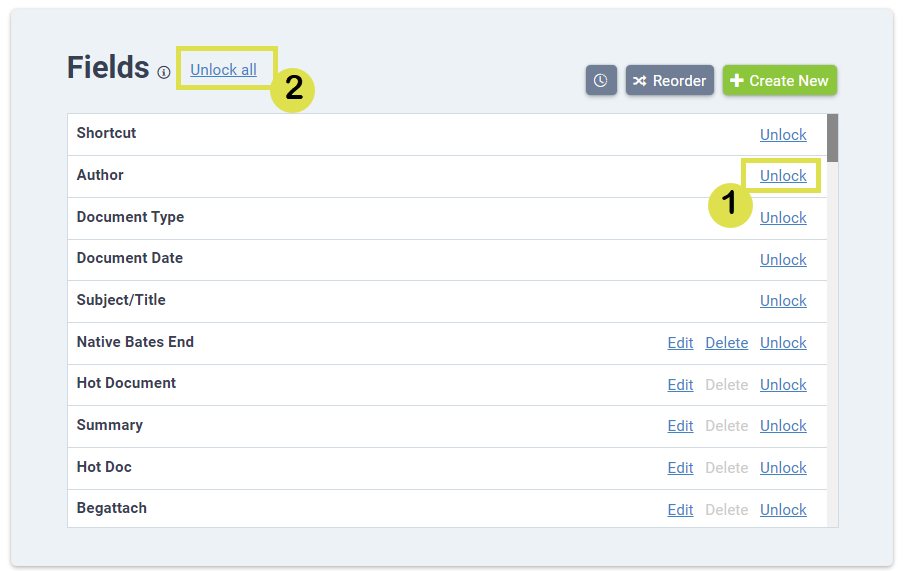
Similarly, for the same location you can:
1. Lock individual unlocked fields.
2. Lock all unlocked fields at once. Note: the "Unlock all" button becomes a "Lock all" button when a majority of the fields are unlocked.
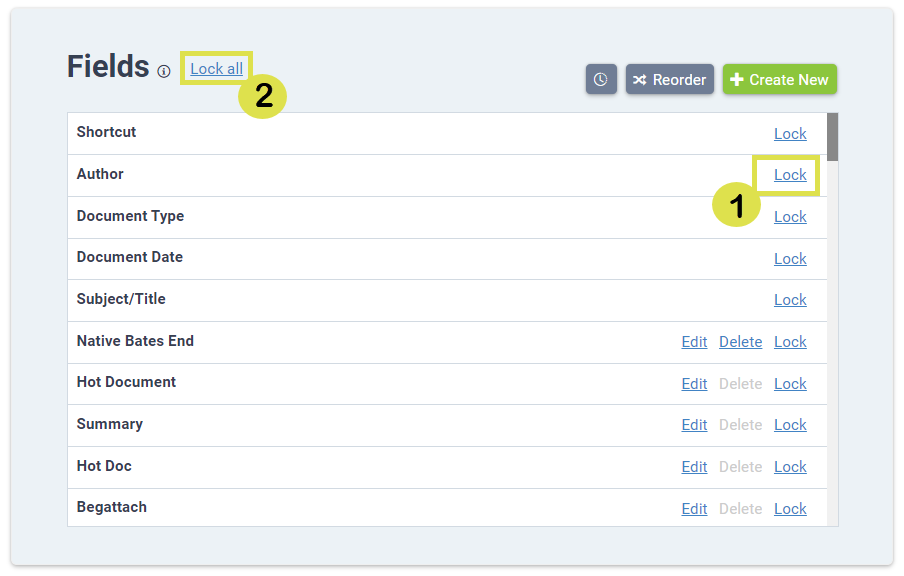
Field Modification History
To access the "Field Modification History," select the clock icon at the top of the "Fields" section.
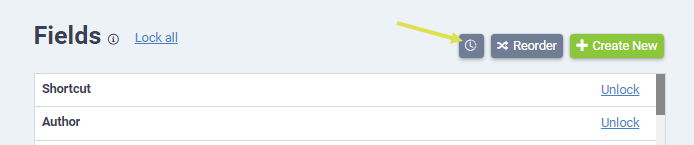
From here you can Search (1) on the list of field modifications, sort (2) the list, and export (3) the list as a PDF. The "Field Modification History" will also record when fields are added or deleted.
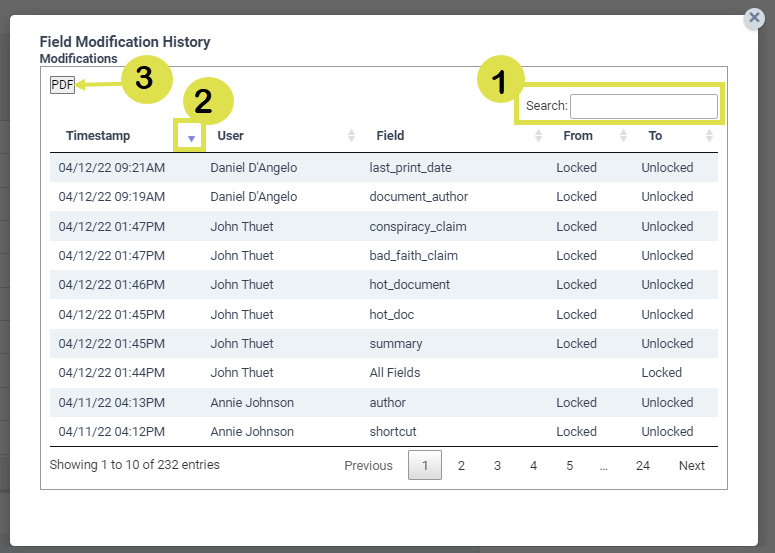
Editing Document Fields
At the document level, unlocked fields (1) will remain white and editable. While you will still be able to read information in locked fields (2), they will appear greyed out and will not editable.
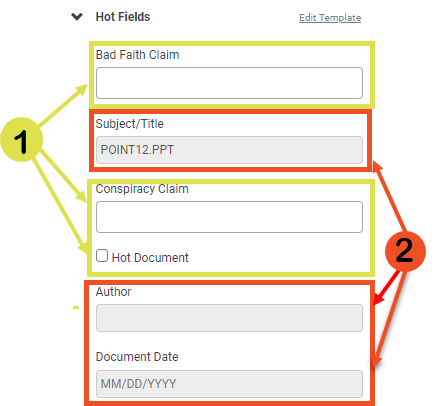
When attempting bulk actions on a set of documents, unlocked fields (1) will appear in black text and can be selected. Locked fields (2) will appear in grey text and can not be selected for bulk actions.
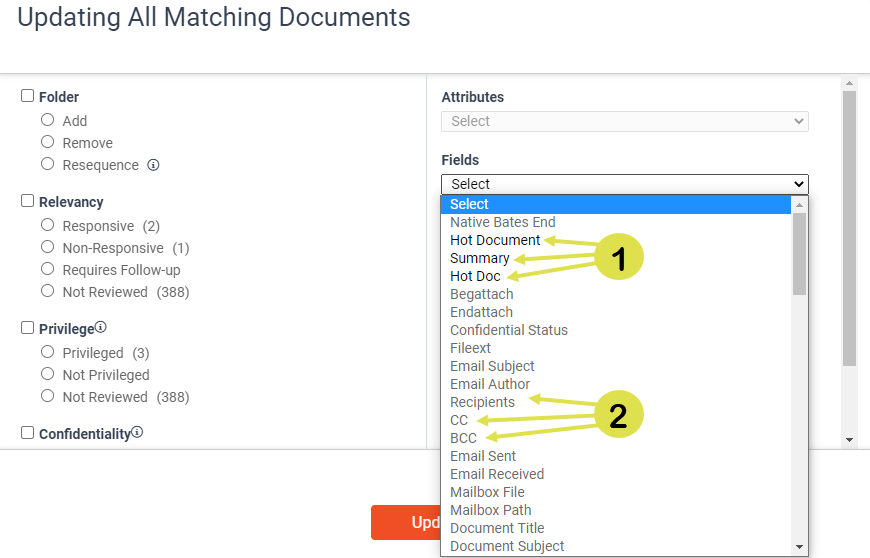
Locked Metadata Fields
Navigating Search Hit Highlights
When you run a search in a database with search hit highlights, Nextpoint will remove any field:value combinations, and carry any keywords through to the document-level.
For example, the below search reads folder:"BZ and BA Emails" AND (takeout test counting).
Upon clicking into any of the resulting documents and entering the document viewer, folder:"BZ and BA Emails" has been removed, but the terms takeout test counting remain in the search bar at the top center of the document viewer.
You will also notice you can search exact phrases in the document.
Questions? Feedback? Please contact our team at support@nextpoint.com.
Search Hit Highlights
In your Nextpoint database, there are several ways to obtain the page count of a particular folder of documents.
Get Page Count
*The below action is only available in Nextpoint Discovery.
- Click on the three-dot menu next to any folder title, and click "Get Page Count" from the drop-down list.
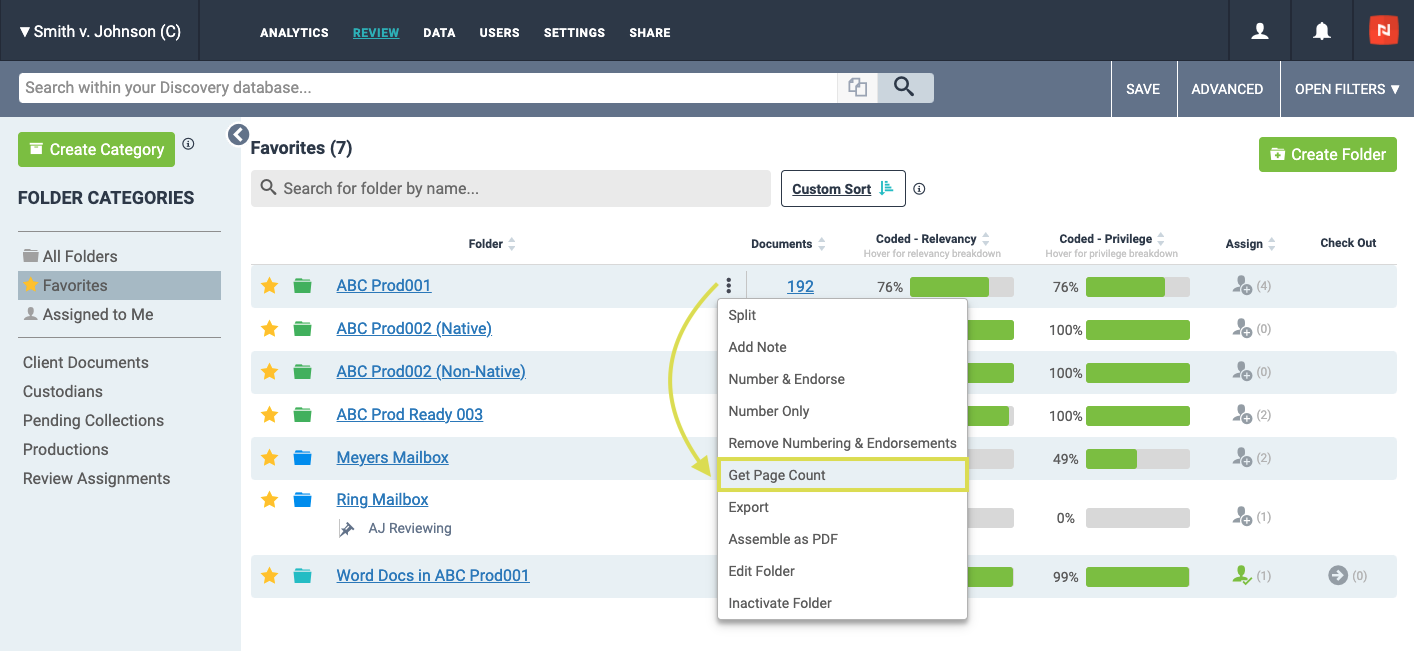
- A report will be generated and emailed to you, detailing page counts for each relevancy status within the folder.
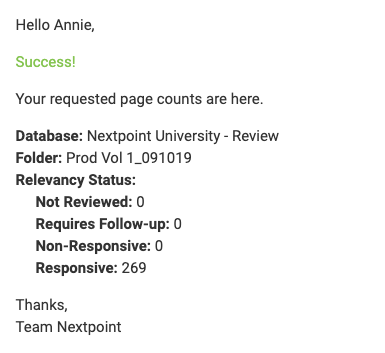
Page Count on Export
*The below action is available in Nextpoint Discovery and Litigation.
- Click on the three-dot menu next to any folder title, and click "Export" from the drop-down list.
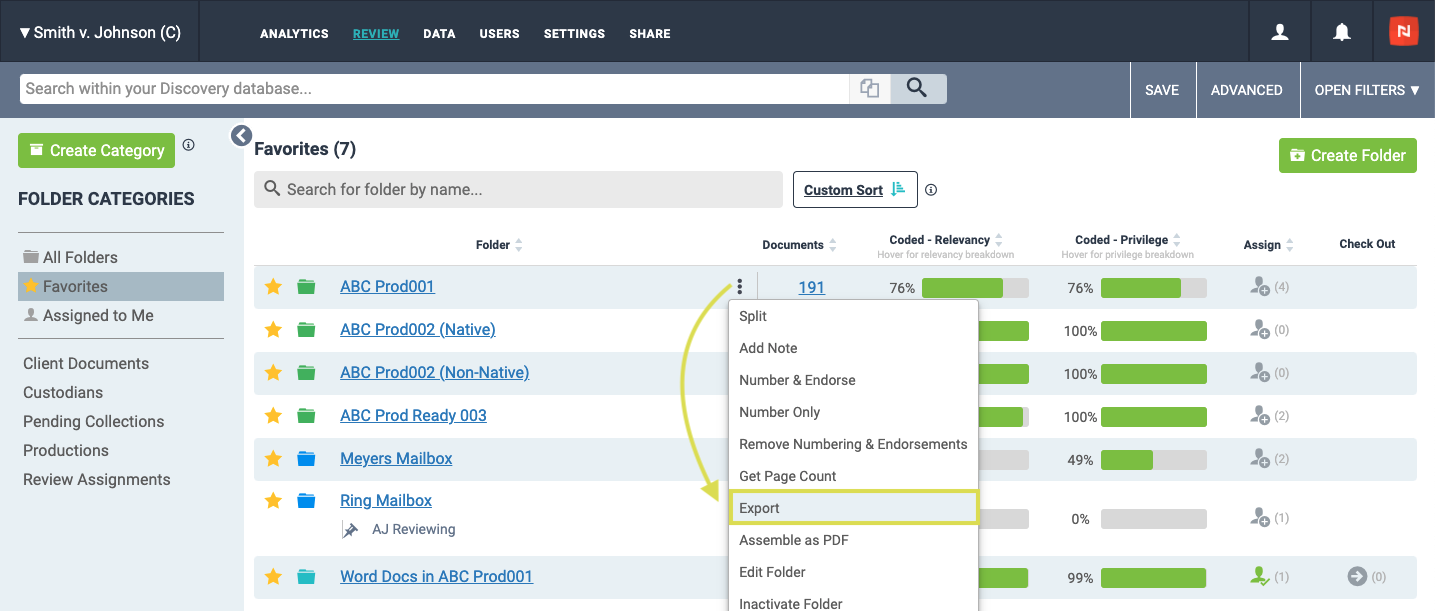
- A report will be generated and displayed in the blue box detailing the page count total for all documents in the folder.
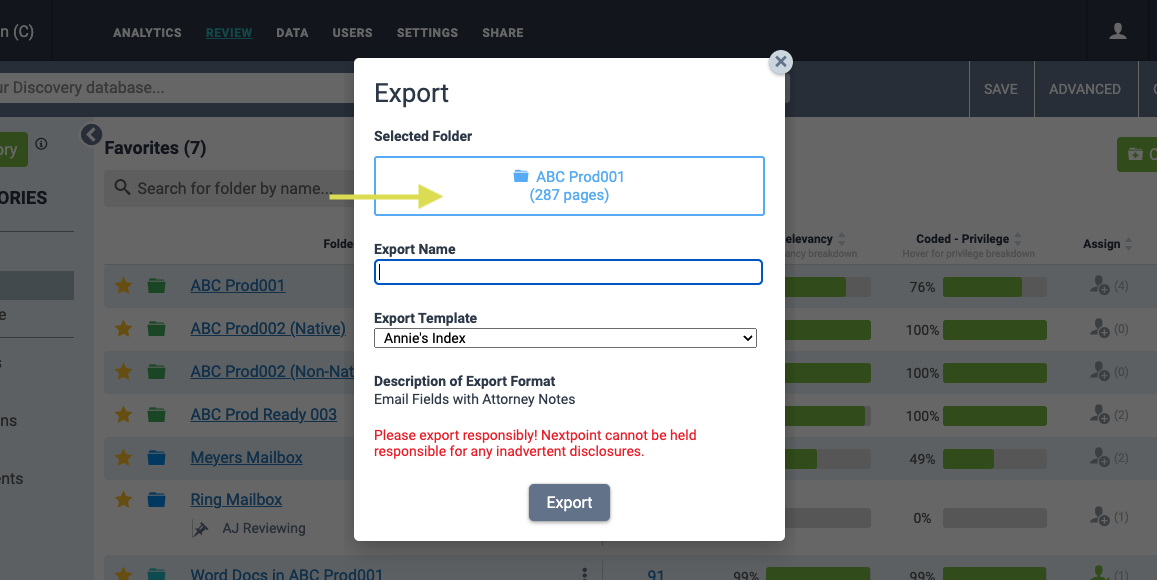
How to Report the Page Count of a Folder
Review Your Data / Document Manipulation
Nextpoint makes it possible to auto-redact (or bulk redact) certain specific terms, phrases and types of data in your Nextpoint database. Auto redactions is offered as a service so that we can assist users to ensure that they redact exactly what they expect to redact.
How to make a bulk redaction request:
From either the image mark-ups dropdown (1) or the image markups page viewer tab (2), select the Bulk Redaction Request. Then download the "CSV Template" (3).
A consultant from Nextpoint's Data Services team will reach out to the requester to support you in completing the request via the template.
Instructions for completing the template:
Review the instructions (4) and examples (5). Then complete the template below the line in the third section (6).
- One term, phrase or PII pattern should entered per row (see the chart below re: PII patterns we support).
- For each term/row, enter a redaction reason for that term in column B of that same row
- For each term/row, enter a redaction style for that term in column C of that same row
Types of data that can be bulk redacted:
| Data Type | Description |
| Terms | Precise terms (no wildcards). Please note that acronyms that may be included in other acronyms would be redacted as a part of an auto-redaction request. |
| Phrases | Precise phrases (no wildcards). Phrases should include quotation marks on both ends of the phrase. |
| PII Patterns: | The PII Patterns we currently support are SSN, TIN, EIN, Phone Number and Email (If you are interested in a specific PII term that you want auto redacted, it may be possible to add it, but it will extend the amount of time it will take to complete your project. |
| SSN: The Social Security number is a nine-digit number in the format AAA-GG-SSSS | |
| TIN: Taxpayer Identification Number is a 9-digit number, beginning with the number "9", formatted like an SSN NNN-NN-NNNN | |
| EIN: An Employer Identification Number (EIN) is a nine-digit number that IRS assigns in the following format: XX-XXXXXXX | |
|
Phone number pattern currently supported is NNN-NNN-NNNN ● Only US Phone numbers are supported right now, but we can incorporate additional patterns as needed. ● Notably, if you want a specific phone number included, we can look for and bulk redact that “term” |
|
| Email: Email PII pattern is all or nothing, not domain specific. So, it will often be best to target specific email addresses, which can be included as precise terms. You can leverage analytics to get that list. |
Results of the Auto Redaction Process:
At the end of the process, you will receive 2 folders in your database:
- The "Bulk Redaction Request_mmddyy" folder contains all documents that received a redaction from this process. We checked this folder of redactions for accuracy, but we recommend that you perform your own quality control messures as well.
- The "Bulk Redaction Errors_mmddyy" folder contains any documents we flagged for a redaction based on the image text, but that could not be redacted due to an error in processing. We strongly recommend you review these for supplemental manual redactions.
Note: We currently cannot bulk redact metadata as a part of our bulk redaction service. We strongly recommend checking your metadata for any terms that might need to be redacted (searching for search_fields:term is helpful for identifying these documents. Please reach out to support@nextpoint.com if you would like support on this as an additional service.
Auto-Redactions
Outlined below are the steps for creating and managing redactions in documents. This article covers both NextGen and Legacy databases.
Which database should I follow?
If you see the badge next to your database name, follow the NextGen steps below. Otherwise, switch to the Legacy tab.
Overview
This guide outlines how to create and manage redactions in NextGen databases. You'll learn how to access redaction tools, customize redaction styles and reasons, apply four different redaction types, manage existing redactions, and add notes to document your decisions.
Accessing Redaction Tools
There are two ways to initiate redactions in NextGen databases:
Click and Drag on Structured Text
- Navigate to the document review page.
- Click and drag directly on structured text embedded within the document (not text within images).
- A pop-up menu appears with annotation options.
Select the Redaction icon from the pop-up menu.
Use the Redaction Icon
- Navigate to the document review page.
- Locate the redaction icon (scalpel/knife shape) in the toolbar.
Click the redaction icon to reveal the redaction submenu.
Customizing Redaction Settings
1. Select Redaction Reason
- PII (Personally Identifiable Information)
- Redacted
- Privileged
- Trade Secret
For styles that display text, the reason appears within the redaction box. You can edit reasons after creation by clicking the redaction and updating the dropdown.
2. Choose Your Redaction Style
| Style | Appearance | Notes |
|---|---|---|
| Black fill, no text | Black box, no visible text | Default for sensitive content |
| Black fill, white text | Black box, white text showing redaction reason | Recommended when reason must be visible |
| White fill, no text | White box, no visible text | Useful for covering annotations or marks |
| White fill, black text | White box, black text showing redaction reason | Alternative to black fill with visible reason |
Redaction Types
Best for: Structured text
- Select Text Redaction.
- Click and drag over text.
- The redaction is applied instantly.
Best for: Images or scanned documents
- Select Area Redaction.
- Draw a box over the content.
- Release to apply.
Best for: Entire pages
- Select Full Page Redaction.
- Enter page numbers or ranges.
- Press Enter.
Best for: Bulk redaction
- Select Auto Redaction.
- Choose a pattern or term.
- Submit to redact all matches.
Managing Redactions
- Click the Layers icon.
- View redactions with creator, timestamp, reason, and notes.
From the Layers panel, click the eyeball icon to toggle redaction visibility on or off:
- Locate the redaction in the Layers panel.
- Click the three-dot menu and select Delete.
- "Are you sure?" dialog appears.
- Enter an explanation (e.g., "Applied in error").
- Click Delete to confirm.
- The redaction is removed instantly without page re-imaging.
- Alternatively, select the redaction in the document view and click the trash can icon.
- Click the Note icon.
- The most recent redaction is selected.
- Type your note.
- Close the dialog to save.
Overview
This guide outlines how to create and manage redactions in Legacy databases. It explains where to find the redaction tool, how to apply different types of redactions, manage existing redactions, and what happens to redacted text.
Accessing Redaction Tools
While viewing a document, click the Markup tool in the Viewer Tools section.
This will open the Markup Tools interface on the right-hand side:
Redaction Types
Best for: Redacting words, phrases, or sections of a document.
- Click and drag to create a redaction box over the information you want to hide.
- Click the Redact button and provide a reason, style, and optional note.
- Repeat to add additional redaction boxes.
Best for: Redacting entire pages.
- By default, this option applies to the Current Page Only.
- To redact multiple pages, select the Range option and enter a comma-delimited list of page numbers (e.g., 1,3,5-9,25).
Best for: Redacting an entire document at once.
Redaction Style
When applying a redaction, you can select from multiple styles that control the fill color, outline, and whether the redaction reason is visible. Choose the style that best fits your needs for readability and compliance.
| Style | Appearance | Notes |
|---|---|---|
| Black fill color, no outline, no text | Solid black box, no visible text or outline | Default for sensitive content |
| Black fill color, no outline, white text | Solid black box with white text showing redaction reason | Use when the reason must be visible |
| White fill color, no outline, no text | White box, no visible text or outline | Useful for covering annotations or marks |
| White fill color, black outline, no text | White box with black border, no text | Alternative for visibility without showing reason |
| White fill color, black outline, black text | White box with black border and black text showing redaction reason | Alternative to black fill with visible reason |
FAQ
When the Markup Tools interface is open, click the Toggle Zoom button above the document to enable a zoom feature for your cursor.
After highlighting or redacting your document, redactions can be found in two locations:
In the Markup Tools interface at the bottom of the panel:
In the history of redactions under the Annotations section on the right-hand side:
Toggle markups on or off via the toggle markups icon in your document Viewer Tools:
Redactions can be removed from the Annotations section or from the Markup Tools interface by selecting the symbol next to the redaction:
Once a redaction markup is applied, the redaction remains in place on the image whenever the document is exported, and the underlying redacted search text is removed from any provided text files.
If you provide a metadata load file with your export, review it carefully for any redacted fields, such as author, recipient, or email subject. Any fields redacted in the images or text must be manually removed from the metadata load file.
How to Apply Redactions
When viewing a single document, click the Share button at the top right of the document preview. A new window will appear allowing you to select Nextpoint users to share the document with.
The Share button looks slightly different depending on the Database type you are in.
Which database should I follow?
If you see the badge next to your database name, follow the NextGen Database tab below. Otherwise, switch to the Legacy Database tab.
After you’ve selected your recipients, you can optionally include a custom message to accompany the secure link they’ll receive by email. When you’re finished, click Send Emails.
Note: Emails are sent immediately, but delivery times may vary depending on recipients’ email servers.
Sharing a Document with Other Users Via Email
Outlined below are the steps for removing redactions and highlights from documents. This article covers both NextGen and Legacy database.
Which database type should I follow?
If you see
next to your database name, follow the NextGen database
tab below. Otherwise, switch to the Legacy database tab.
Removing Annotations in NextGen Databases
For NextGen databases, annotations are managed directly from the Layers panel in the document review interface.
Accessing Your Annotations
Click the Layers icon in the upper-left corner of the document review area to expand the Layers panel.
The Layers panel displays all annotations, including:
- Timestamp of when the annotation was created
- User who created the annotation
- Related issue (for highlights) or redaction reason
- The text or area that was marked
Removing Individual Annotations
- In the Layers panel, locate the annotation you want to remove.
-
Click the three-dot menu next to the annotation
and then
click Delete.
- An "Are you sure?" dialog appears prompting you to provide an explanation for removing the annotation.
- Enter an explanation (for example, "Applied in error" or "No longer applicable").
-
Click Delete to confirm.
The annotation is removed instantly without page re-imaging.
Alternatively, you can select the redaction directly within the document view and then click the trash can icon in the top right:
Audit Trail
All annotation removals are recorded in the document’s Document History, which retains:
- Who removed the annotation
- When it was removed
- The explanation provided
This creates a complete audit trail for all annotation changes.
Removing Annotations in Legacy Databases
To view the image markups made to a document, expand the Annotations section.
The Annotations section will have information on the markups.
-
Click the
 to remove an individual markup, or
- Click "Remove All" to remove them all.
A pop-up window will ask for an explanation for the redaction or highlight removal. Enter the text and click "Remove".
The image will be reprocessed to remove the markup(s), and the document history will retain who removed the markups and when.
Return to Discovery Workflow
How to Remove a Redaction or Highlight
Using a NextGen Database?
This feature is currently available in legacy databases. Support for NextGen databases is coming in a future release.
Sometimes, images of imported documents won't show up in your database. This can happen for a number of reasons, such as a corruption somewhere in the file, encryption, embedded images, an unsupported file type, etc. If you know that this file opens and you can see it in its native format, you can add images yourself. This will not affect any metadata, it simply allows you to view an image within our system.
Note: If you have existing Confidentiality coding on the document(s), you will need to reapply this coding only after the pages are replaced. See below instructions for more details.
First, download the original file by clicking the download button or clicking the three-dot menu and selecting "view original files".
In the application you're using, go to File - Print and choose "Save as PDF" (or other supported image-type).
Please note that you may need to change settings when opening a mailbox file in Outlook or Mail so that no additional information is included in the header/footer (such as your name or today's date) which is shown below.
Once you've chosen "Adobe PDF" as your print option, ensure that the header/footer is blank by following the steps below.
The below fields should all be empty to ensure nothing will be added to your image.
Hit ">>", scroll to print, and hit "save as PDF".
Go back into your document viewer, click the three-dot menu and choose "add page(s)".
This will prompt the "Import Pages" screen, where you can Drag & Drop, Add File from Computer, or Add from File Room (wherever you've saved your image). It also allows you to add-in a note prior to importing.
Wait for the image to finish processing. You will then be able to view the image in a PDF format.
Once the replacement has been imaged, first, reset your confidentiality coding to image on the document by setting the Confidentiality code on that document to a Null value > Update > wait for the Confidential stamps to remove from the image > Refresh your browser > check Confidential again > Update.
Add Page(s)
The native spreadsheet viewer allows users to review spreadsheets directly within the app, without relying on images or downloading files for external review. This feature supports .xls, .xlsx, .xlsm, .xlsb, and .csv files.
To access the spreadsheet viewer, click the View dropdown and select Spreadsheet.
From Spreadsheet view, users can review cells across each worksheet and perform the following actions to support their review:
- Undo or redo actions.
- Sort and filter columns to organize and isolate specific data.
- Search for specific text within the spreadsheet.
- Freeze and unfreeze panes.
- Wrap text within cells.
- View formulas in the formula bar above the worksheet, or view the values returned by formulas directly in the cells.
- Zoom in or out on the worksheet.
Any hidden data is automatically unhidden during import to ensure no content is missed. Users can then hide or unhide columns as needed using the native viewer.
Spreadsheet processing, redaction, endorsement, and production workflows remain unchanged.
Note: When searching within spreadsheets, the default behavior is to search the entire workbook. To search across only a single Worksheet, click Find >> and select Worksheet from the Within dropdown.